How to Host a Static Website on Amazon S3
Learn how to build a static website with Amazon S3 using the Console and Terraform, including bucket creation, static website hosting, public access policies, redirects, and uploading and testing website files.

Amazon S3 can be used not only to store files, but also to quickly host a static website.
If a website consists only of static files such as HTML, CSS, JavaScript, and images, you do not need to create an EC2 instance or install a web server. You also do not need to manage the operating system or server yourself later.
For this reason, S3 is not only suitable for proof-of-concept projects. It is also a simple, low-maintenance service for hosting static websites.
However, S3 static website hosting has one important limitation: an S3 Website endpoint supports HTTP only, not HTTPS. This article focuses on a simple, working static website on S3 and explains the basic configuration and access methods.
Create an S3 Bucket
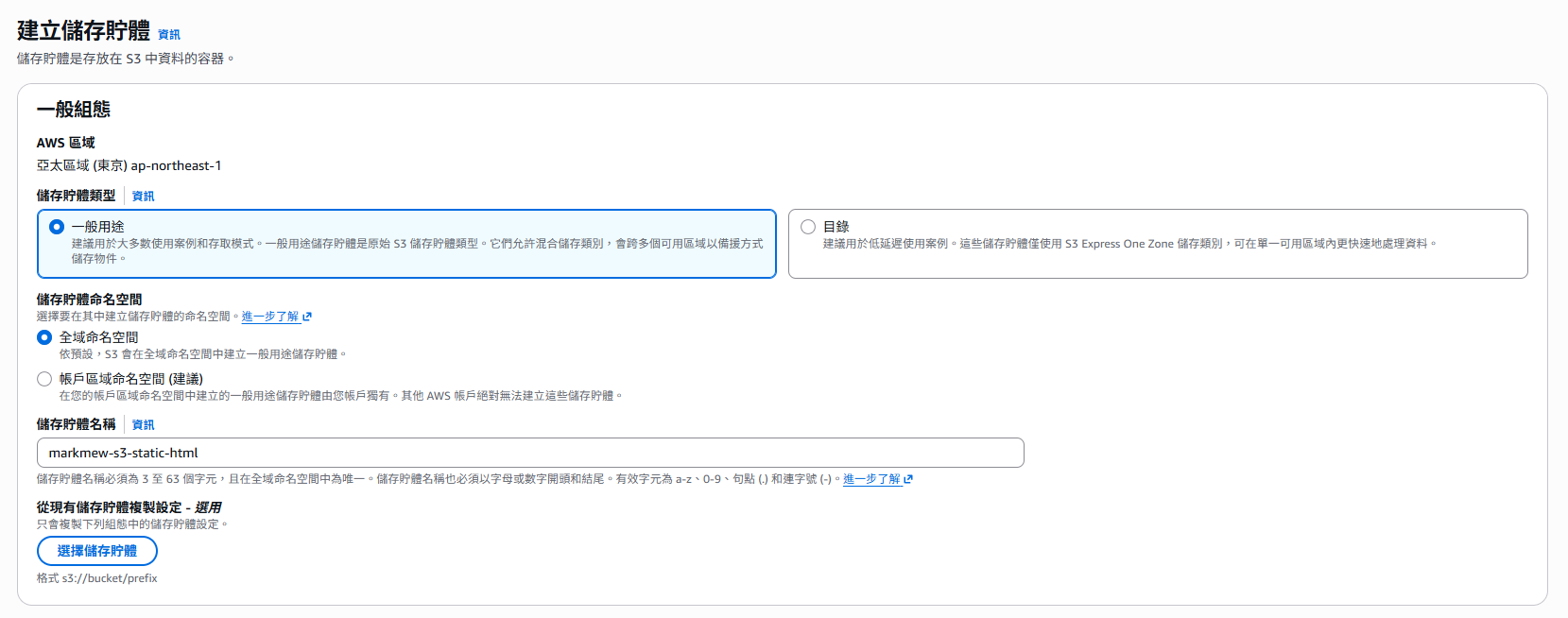
First, open the Amazon S3 Console and create a new bucket.
The bucket name must follow DNS naming rules and be globally unique across all AWS accounts and Regions. Besides identifying the bucket, the name will also become part of the website URL, so choose a name that is unlikely to change later.
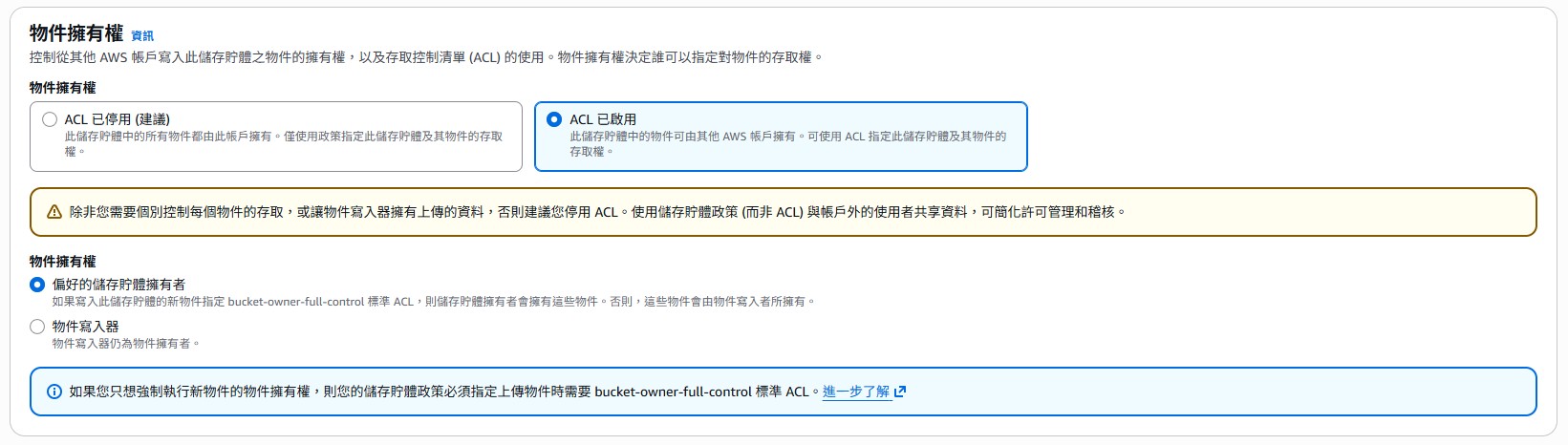
Object Ownership
In the Object Ownership settings, you can usually keep the default setting with ACLs disabled.
When ACLs are disabled, object permissions are managed through a bucket policy or IAM policy. This makes the permission model easier to understand and avoids inconsistent object ownership when files are uploaded by different users.
Only consider enabling ACLs if you know that you need to use legacy ACLs or configure ACLs for individual objects.
Block Public Access
If you want anyone to read the website content directly through the S3 Website endpoint, you must turn off Block all public access.
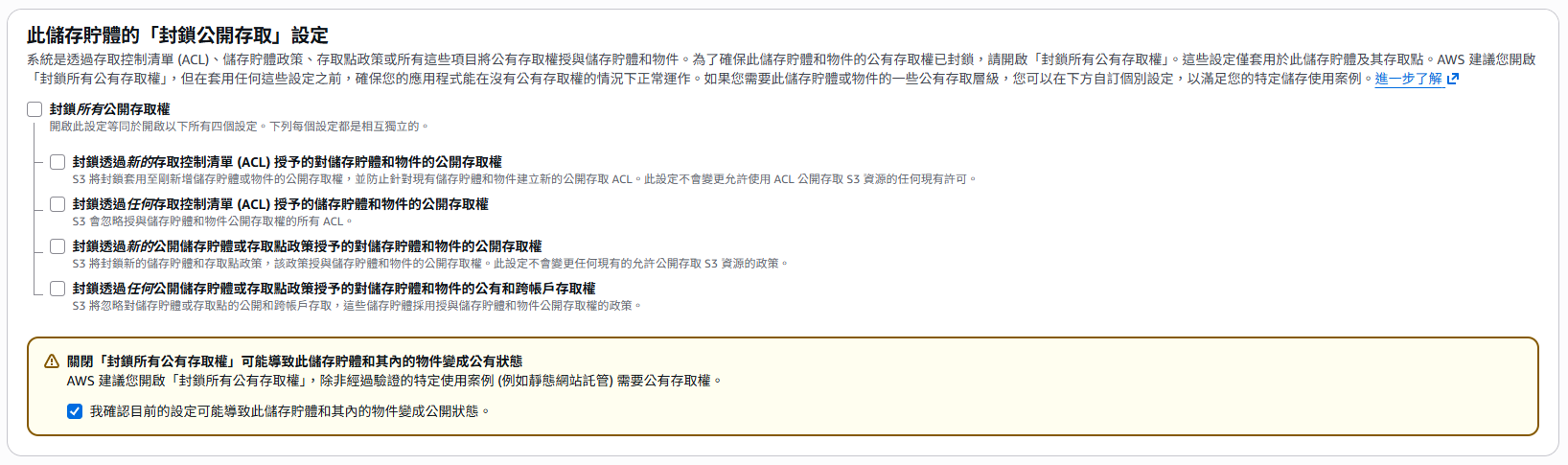
After you turn it off, AWS will ask you to acknowledge that the bucket may be publicly accessible. Make sure the bucket will contain only files that are safe to publish. Do not store passwords, private keys, backups, or other sensitive data in it.
If Block Public Access is still enabled at the account level, the bucket-level settings may not be enough for a public policy to take effect. In that case, check the account- or Organization-level public access settings according to your security requirements.
Leave the remaining settings at their defaults and click Create bucket.
Enable Static Website Hosting
After creating the bucket, open the bucket’s Properties tab, scroll to the bottom, and find Static website hosting.

Click Edit, enable static website hosting, and configure the following:
- Index document:
index.html - Error document:
error.html
The index document is the page S3 returns by default when a user visits the website root. The error document is shown when a requested file does not exist. You can use a different filename if needed, but the file must actually exist in the bucket.
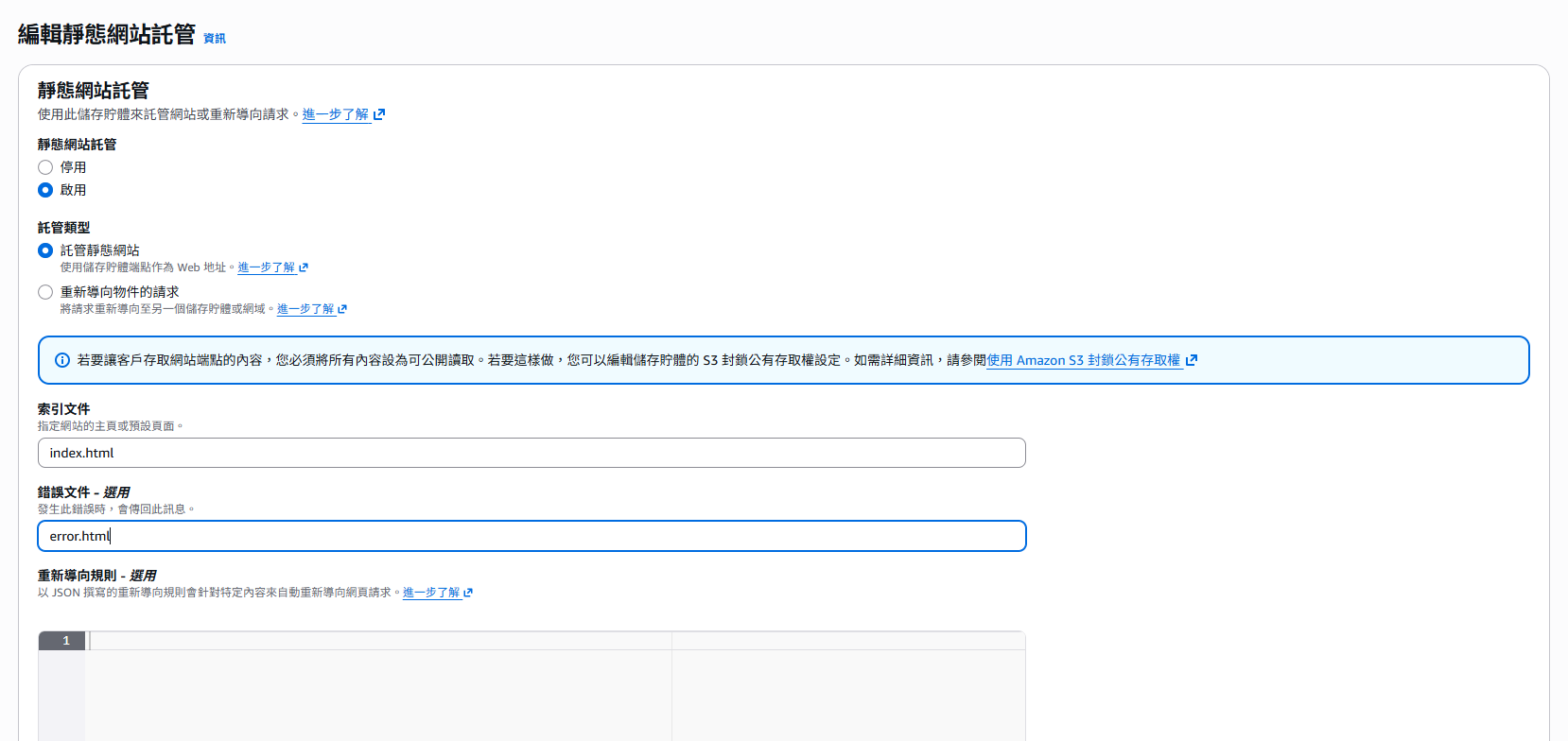
After saving the settings, S3 will display the Website endpoint on the same page. It is best to copy the URL shown in the Console because the endpoint format may vary between Regions.
Configure Website Redirects
If a website path changes, you can use redirect rules to prevent the old URL from immediately returning a 404 response.
For example, if the docs directory is renamed to documents, requests beginning with docs/ can be redirected to the new path:
1
2
3
4
5
6
7
8
9
10
[
  {
    "Condition": {
      "KeyPrefixEquals": "docs/"
    },
    "Redirect": {
      "ReplaceKeyPrefixWith": "documents/"
    }
  }
]
Rules like this are useful when changing website paths or keeping old URLs compatible. For a single-page change, you can also handle the redirect in the website application or keep an old file that performs the redirect.
Configure the Bucket Policy
By default, S3 does not allow anonymous users on the internet to read objects. To make the static website public, create a bucket policy that allows read access only.
Open the Permissions tab of the bucket, find Bucket policy, and paste the following policy. Replace YOUR_BUCKET_NAME with the actual bucket name:
1
2
3
4
5
6
7
8
9
10
11
12
{
  "Version": "2012-10-17",
  "Statement": [
    {
      "Sid": "AllowPublicReadForWebsite",
      "Effect": "Allow",
      "Principal": "*",
      "Action": "s3:GetObject",
      "Resource": "arn:aws:s3:::YOUR_BUCKET_NAME/*"
    }
  ]
}
This policy allows anyone to read objects in the bucket, but does not grant permission to upload, modify, or delete objects. If you want to make only a specific folder public, limit the Resource to a particular prefix:
1
"Resource": "arn:aws:s3:::YOUR_BUCKET_NAME/public/*"
If setting permissions for every object individually seems inconvenient, a bucket policy is a better option. New files uploaded within the policy scope will automatically use the same read permission, so you do not have to configure each object’s permissions separately.
Making a bucket public means that anyone may be able to read objects within the policy scope. Make sure the bucket contains only public website resources, and review the bucket policy and access logs regularly.
Upload and Test the Website Files
Next, upload your website files, such as index.html, error.html, CSS, JavaScript, and images, to the bucket.
After the upload is complete, open the website using the Website endpoint shown in the S3 Console. It generally follows one of these formats:
1
http://YOUR_BUCKET_NAME.s3-website-YOUR_REGION.amazonaws.com
or:
1
http://YOUR_BUCKET_NAME.s3-website.YOUR_REGION.amazonaws.com
The website root will automatically load the configured index.html. If you enter a path that does not exist, S3 will display error.html.
Website Endpoint vs. REST Endpoint
These two types of URL are easy to confuse:
| Endpoint | Purpose | HTTPS | Applies website settings |
|---|---|---|---|
| S3 Website endpoint | Access the static website | Not supported | Supports index, error, and redirect behavior |
| S3 REST endpoint | Access a specific object or use the S3 API | Supported | Does not apply S3 Website endpoint behavior |
For example, https://YOUR_BUCKET_NAME.s3.YOUR_REGION.amazonaws.com/index.html is an object URL using the REST endpoint. It can use HTTPS to read the specific index.html object, but it is not the S3 Website endpoint and does not fully apply the website root, error page, or redirect settings.
Create the Website with Terraform
Instead of using the AWS Console, you can also manage the S3 static website with Terraform. The following example creates the bucket, object ownership settings, public access settings, website configuration, and a bucket policy that allows public read access to objects.
Replace the bucket name in the example with a name that follows DNS naming rules and is globally unique across all AWS accounts and Regions.
1
2
3
4
5
6
7
8
9
10
11
12
13
14
15
16
17
18
19
20
21
22
23
24
25
26
27
28
29
30
31
32
33
34
35
36
37
38
39
40
41
42
43
44
45
46
47
48
49
50
51
52
53
54
55
56
57
58
59
60
61
62
63
64
65
66
67
68
69
resource "aws_s3_bucket" "markmew_s3_static_html" {
    bucket = "markmew-s3-static-html"
}

resource "aws_s3_bucket_ownership_controls" "markmew_s3_static_html" {
    bucket = aws_s3_bucket.markmew_s3_static_html.id

    rule {
        object_ownership = "BucketOwnerPreferred"
    }
}

resource "aws_s3_bucket_public_access_block" "markmew_s3_static_html" {
    bucket = aws_s3_bucket.markmew_s3_static_html.id

    block_public_acls       = false
    block_public_policy     = false
    ignore_public_acls      = false
    restrict_public_buckets = false
}

resource "aws_s3_bucket_acl" "markmew_s3_static_html" {
    depends_on = [
        aws_s3_bucket_ownership_controls.markmew_s3_static_html,
        aws_s3_bucket_public_access_block.markmew_s3_static_html,
    ]
    bucket = aws_s3_bucket.markmew_s3_static_html.id
    acl    = "public-read"
}

resource "aws_s3_bucket_website_configuration" "markmew_s3_static_html" {
    bucket = aws_s3_bucket.markmew_s3_static_html.id

    index_document {
        suffix = "index.html"
    }

    error_document {
        key = "error.html"
    }
}

data "aws_iam_policy_document" "markmew_s3_static_html_public_read" {
    statement {
        sid    = "AllowPublicReadForWebsite"
        effect = "Allow"

        principals {
            type        = "*"
            identifiers = ["*"]
        }

        actions = [
            "s3:GetObject",
        ]

        resources = [
            "${aws_s3_bucket.markmew_s3_static_html.arn}/*",
        ]
    }
}

resource "aws_s3_bucket_policy" "markmew_s3_static_html_public_read" {
    depends_on = [
        aws_s3_bucket_public_access_block.markmew_s3_static_html,
    ]
    bucket = aws_s3_bucket.markmew_s3_static_html.id
    policy = data.aws_iam_policy_document.markmew_s3_static_html_public_read.json
}
Monitor Requests and Costs
S3 costs can include more than storage. Depending on usage, you may also be charged for requests, data transfer, and other related services. As website traffic increases, regularly review your S3 storage, request counts, and data transfer.
If you need more detailed visibility into request counts, errors, and latency, see the previous article: How to Enable Amazon S3 Request Metrics: Monitor Requests, Errors, and Latency with CloudWatch.
In addition to monitoring, consider configuring AWS Budgets or a CloudWatch Alarm so that you can respond quickly to unusual traffic or cost changes. For public websites, also watch for unusually large downloads or malicious requests.
Conclusion
Hosting a static website with S3 is straightforward: create a bucket, enable static website hosting, configure a public read policy, and upload the website files.
This approach is suitable for personal websites, documentation pages, product landing pages, and proof-of-concept projects. Because a public S3 Website endpoint supports HTTP only, make sure the website does not contain sensitive information that requires encrypted transmission.
Before enabling public access, confirm that the bucket contains no sensitive data. After the website goes live, combine cost and request monitoring to reduce the risk of incorrect permissions and unexpected traffic while keeping the architecture simple.