AWS SQL Server Setup Extension: Audit Configuration and Password Rotation
Extend a basic RDS for SQL Server setup with SQL Server Audit, S3 audit log storage, IAM role permissions, and master user password management and rotation with AWS Secrets Manager.

In the previous article, AWS SQL Server Setup Tutorial: A Complete Walkthrough from Creation to Connection, we walked through the basic RDS for SQL Server setup, including the DB subnet group, DB parameter group, option group, S3, IAM, backup and restore, and connection testing.
But if you want to move a database closer to production, “it can connect, it can back up, and it has monitoring” is usually not enough.
Production environments also care about two things:
- Who performed which database operations, and whether those actions leave traceable audit records.
- Whether database passwords are still stored and updated manually, or have been moved into a manageable rotation process.
This article continues from the previous RDS for SQL Server setup and adds two common advanced settings: SQL Server Audit and master user password rotation.
Audit Configuration
RDS for SQL Server can work with SQL Server Audit and export audit files to a specified S3 bucket. Conceptually, the setup has two layers:
| Layer | What to configure |
|---|---|
| AWS RDS layer | Add SQLSERVER_AUDIT to the option group, then configure the IAM role, S3 bucket, compression, and retention time |
| SQL Server layer | Create the server audit, server audit specification, or database audit specification inside SQL Server |
In other words, the option group only gives RDS for SQL Server the ability to send audit files to S3. The actual events to audit are still configured in SQL Server through audit specifications.
Create an S3 Bucket
The S3 bucket created in the previous article, markmew-rds-sql-server-backup-restore, is used to store .bak files for backup and restore. Technically, you can reuse the same bucket, but in production it is usually better to separate backup files and audit records.
The reason is simple: backups and audits usually have different lifecycles, permission boundaries, retention periods, and readers. Backup files may be used by DBAs or restore workflows. Audit records are closer to security, compliance, and audit evidence, so they should have stricter read permissions and retention policies.
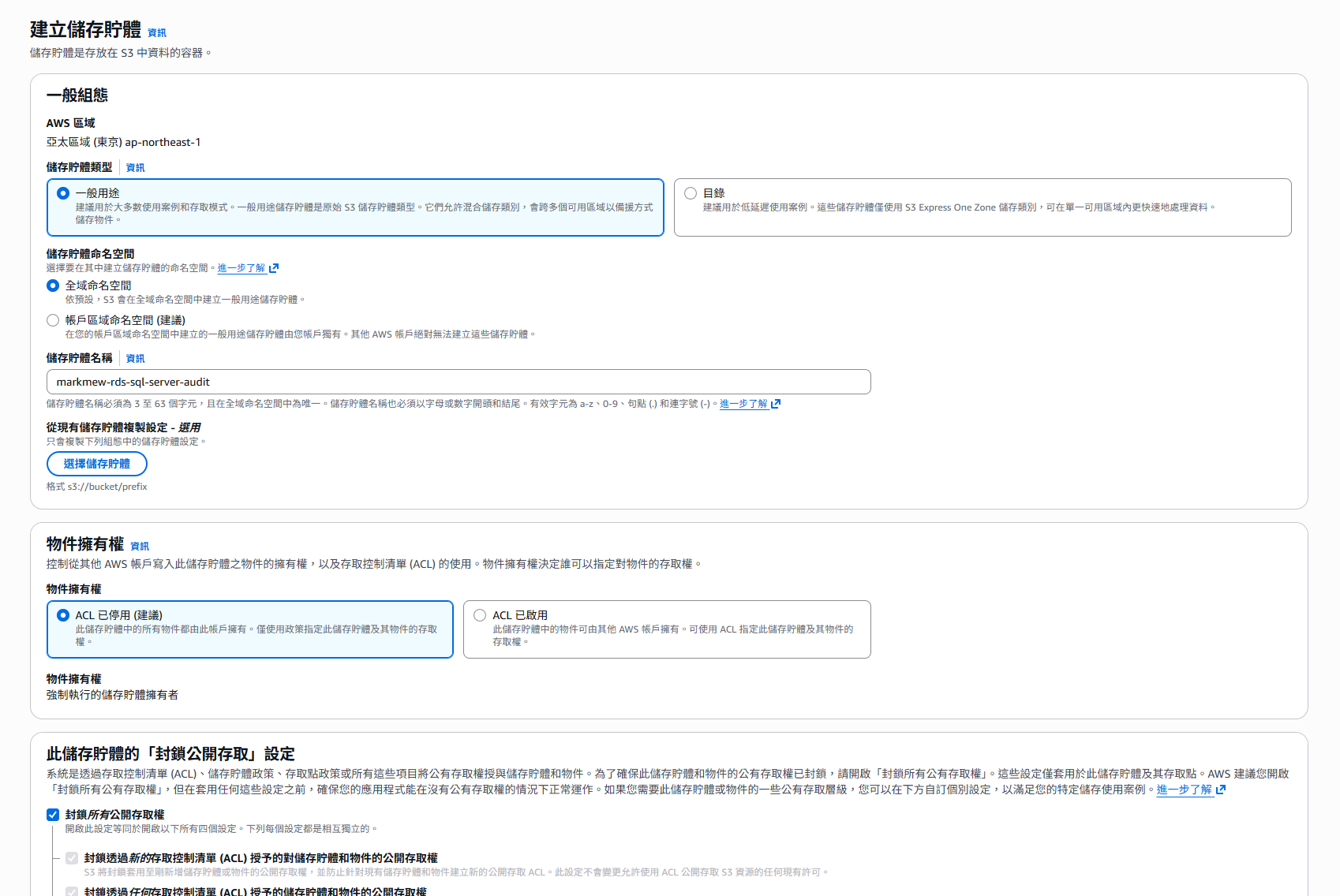
This example uses another bucket:
1
markmew-rds-sql-server-audit
If a single bucket stores audit data for multiple RDS resources, at least separate them with a prefix, for example:
1
sqlserver-audit/
Create an IAM Policy
Before creating the IAM role, create an IAM policy first. This lets you search for and attach the policy directly when creating the role, instead of going back to add permissions later.
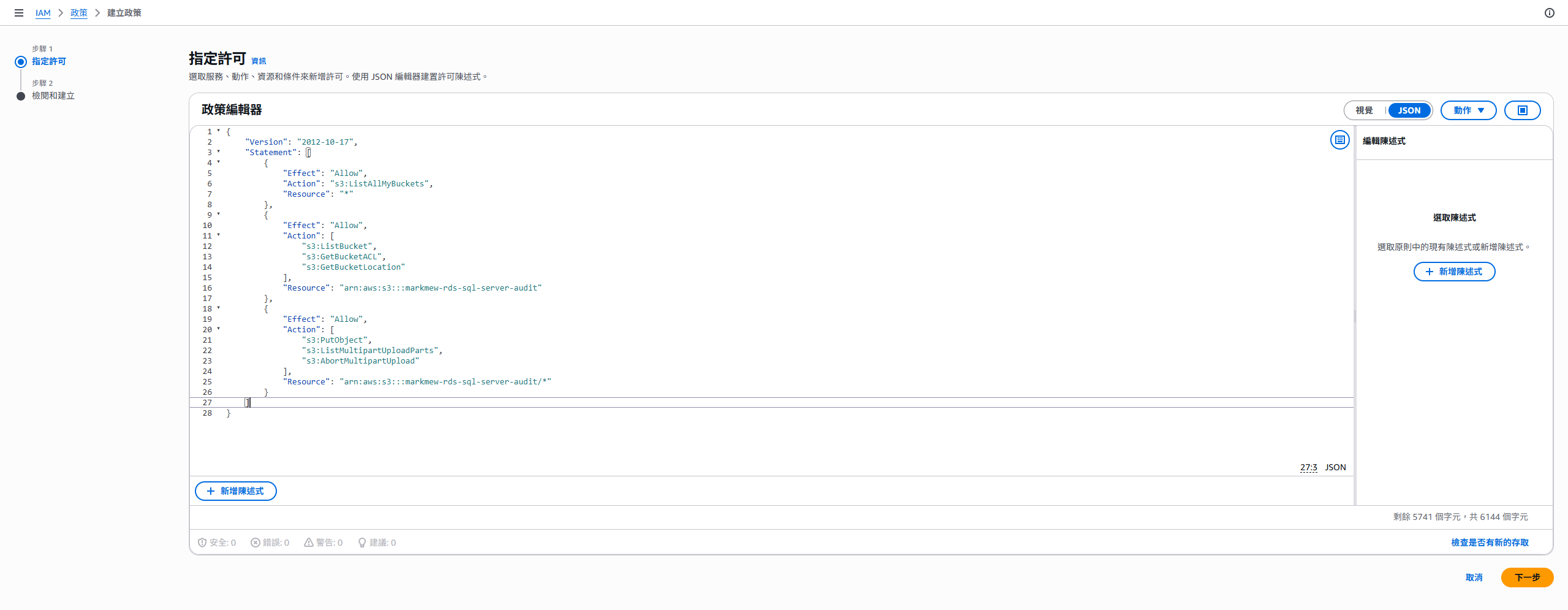
The S3 permissions for SQL Server Audit must at least allow RDS to verify the bucket, get bucket information, and write audit files to the specified location. The following policy is for demonstration:
1
2
3
4
5
6
7
8
9
10
11
12
13
14
15
16
17
18
19
20
21
22
23
24
25
26
27
28
{
  "Version": "2012-10-17",
  "Statement": [
    {
      "Effect": "Allow",
      "Action": "s3:ListAllMyBuckets",
      "Resource": "*"
    },
    {
      "Effect": "Allow",
      "Action": [
        "s3:ListBucket",
        "s3:GetBucketACL",
        "s3:GetBucketLocation"
      ],
      "Resource": "arn:aws:s3:::markmew-rds-sql-server-audit"
    },
    {
      "Effect": "Allow",
      "Action": [
        "s3:PutObject",
        "s3:ListMultipartUploadParts",
        "s3:AbortMultipartUpload"
      ],
      "Resource": "arn:aws:s3:::markmew-rds-sql-server-audit/*"
    }
  ]
}
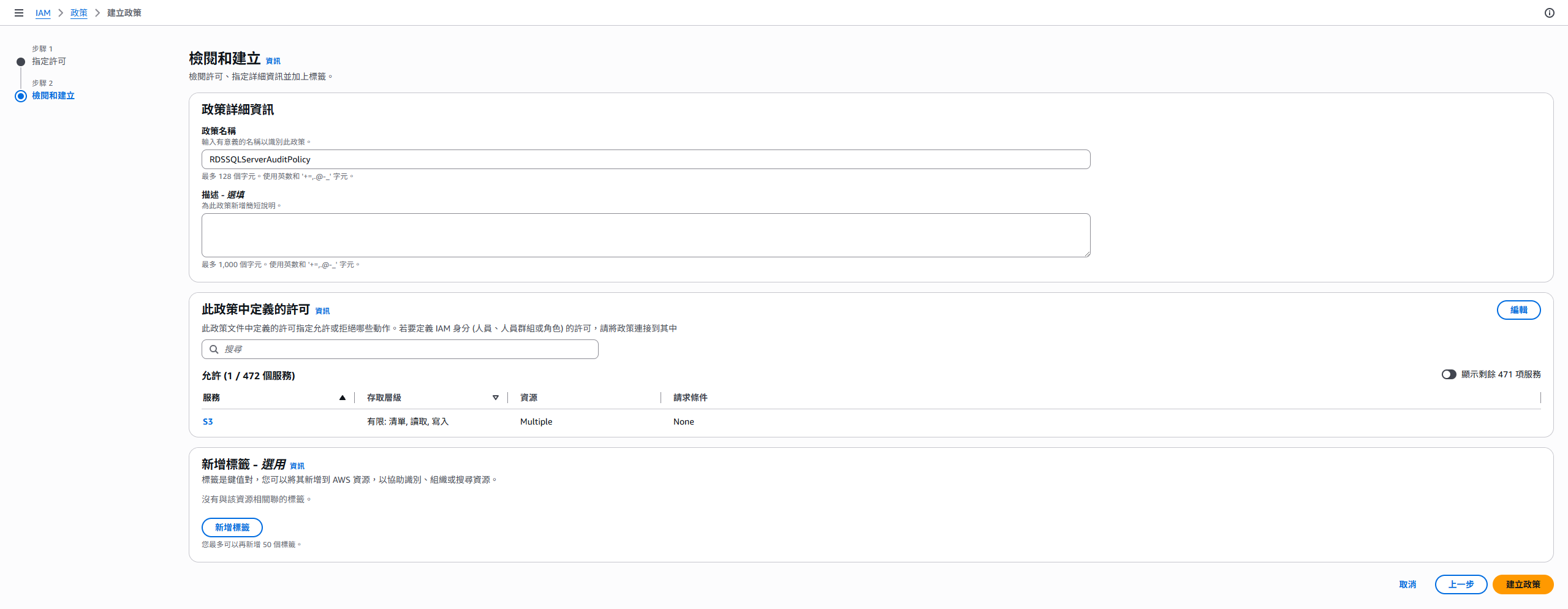
If the production prefix is already decided, restrict object permissions to that prefix, such as
arn:aws:s3:::markmew-rds-sql-server-audit/sqlserver-audit/*. Audit logs usually do not need RDS to write to the entire bucket.
Create an IAM Role
Next, create an IAM role that RDS can assume. This role provides the permissions required for SQL Server Audit to write to S3, so its trust relationship must at least allow rds.amazonaws.com to use it.
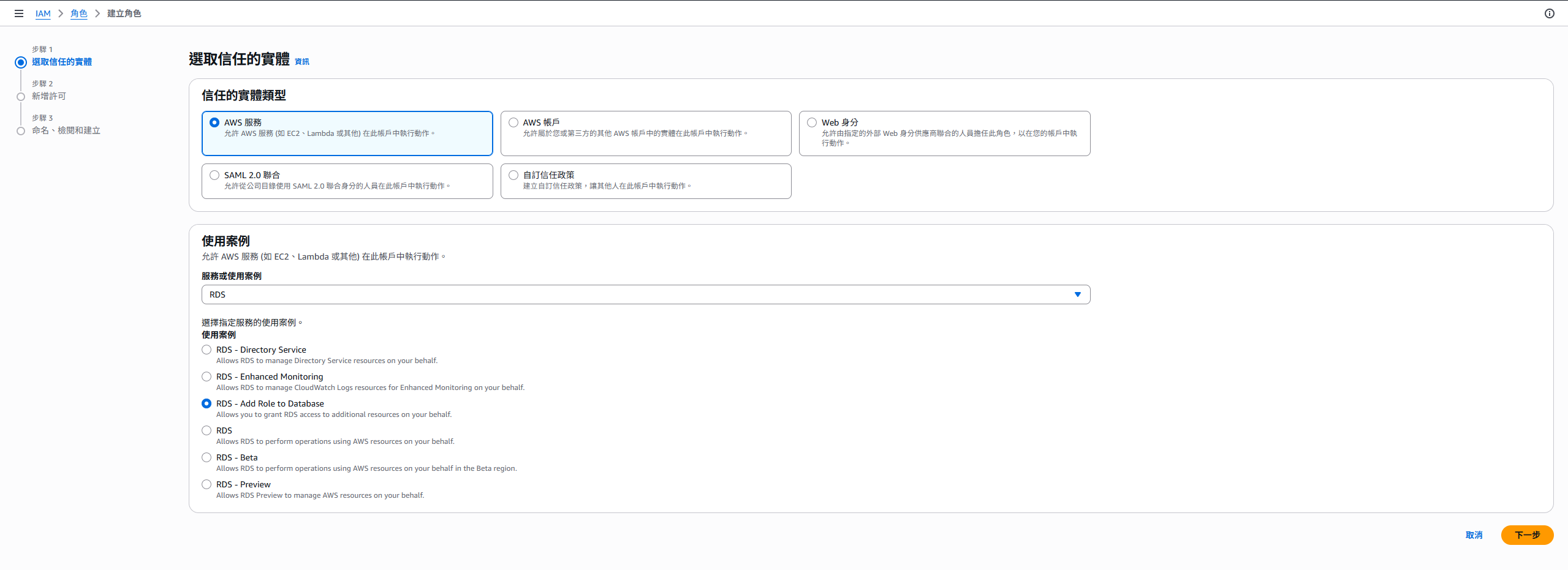
If the policy was created earlier, you can now search for it and attach it.
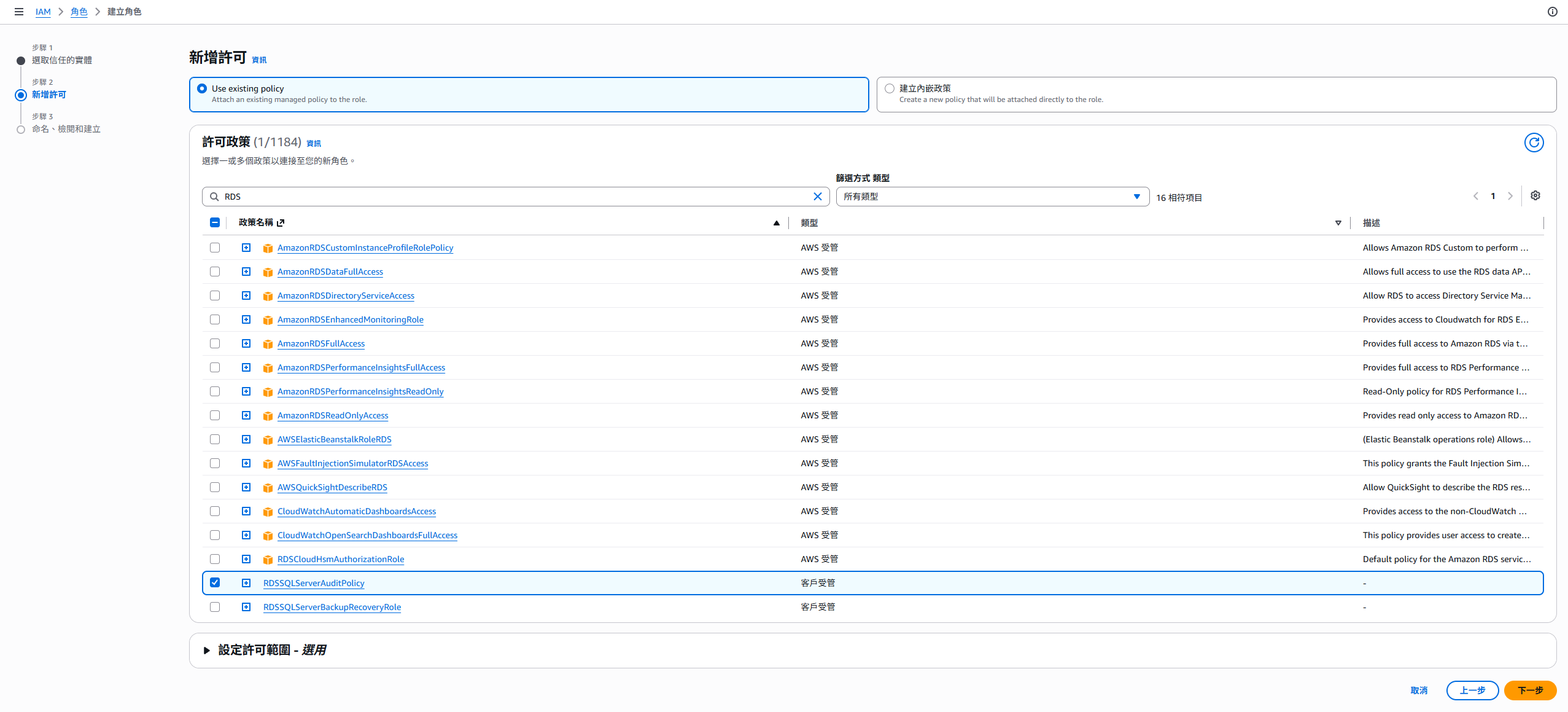
For the trust relationship, you can start with rds.amazonaws.com as the trusted entity.
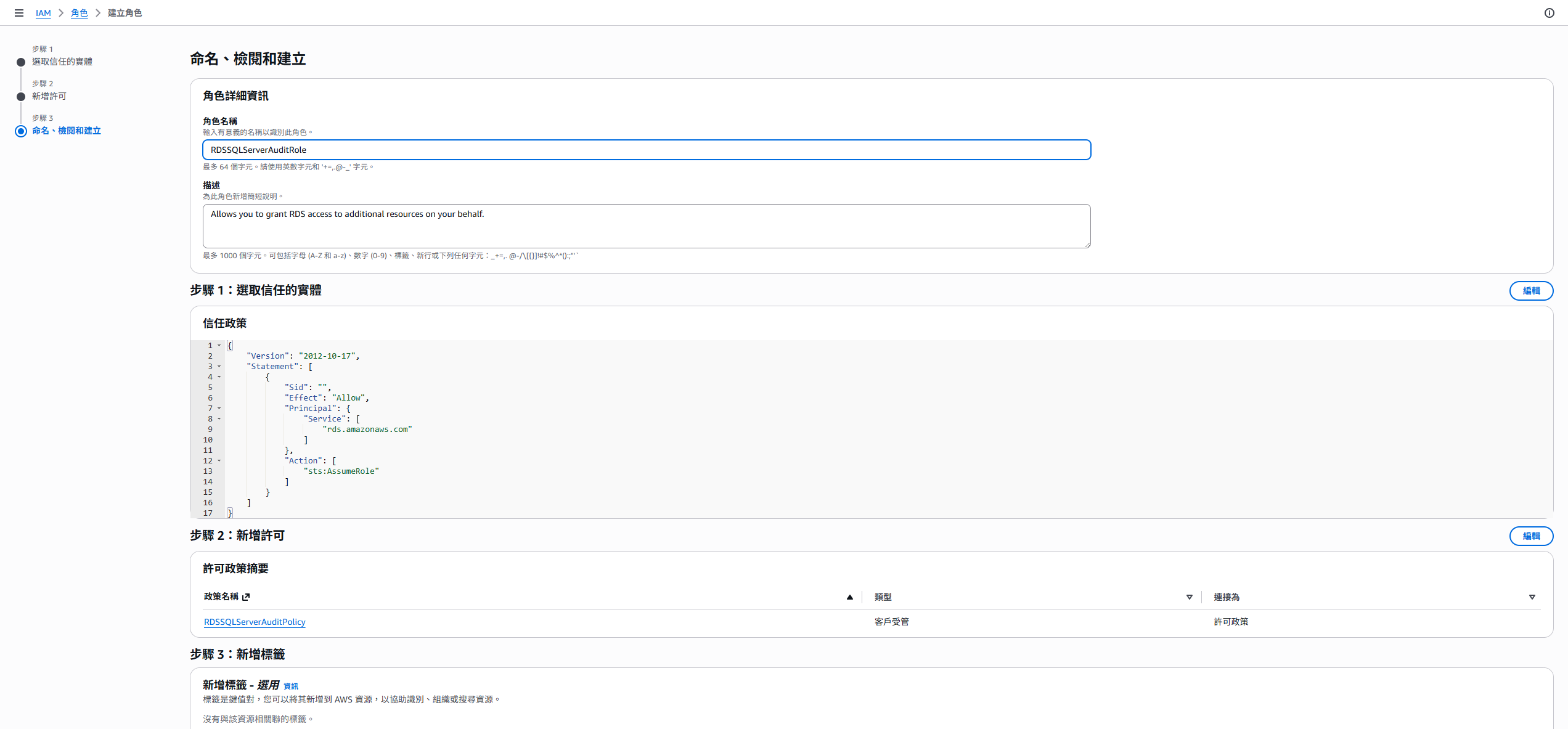
For a demo environment, you can start with this simpler trust policy:
1
2
3
4
5
6
7
8
9
10
11
12
{
  "Version": "2012-10-17",
  "Statement": [
    {
      "Effect": "Allow",
      "Principal": {
        "Service": "rds.amazonaws.com"
      },
      "Action": "sts:AssumeRole"
    }
  ]
}
For production, make it stricter by adding aws:SourceAccount and aws:SourceArn, limiting the role to a specific account, DB instance, and option group. The previous article showed this pattern for the native backup and restore IAM role; the same concept can be used for audit.
Add SQLSERVER_AUDIT to the Option Group
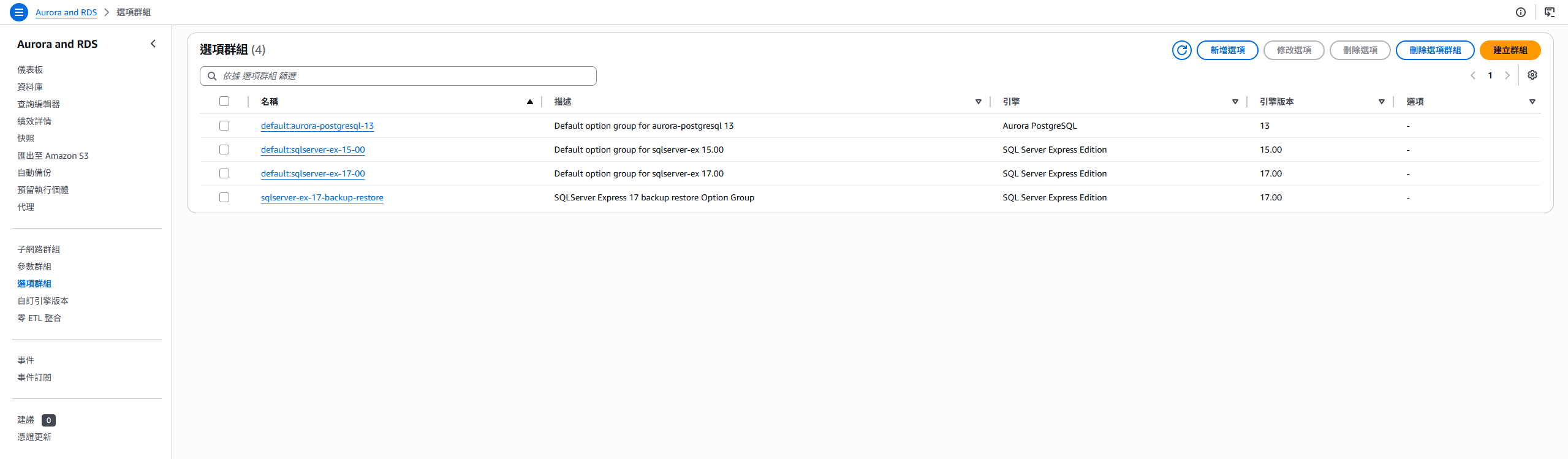
Next, return to the option group used by SQL Server. This step is similar to adding SQLSERVER_BACKUP_RESTORE in the previous article, except this time the option is SQLSERVER_AUDIT.
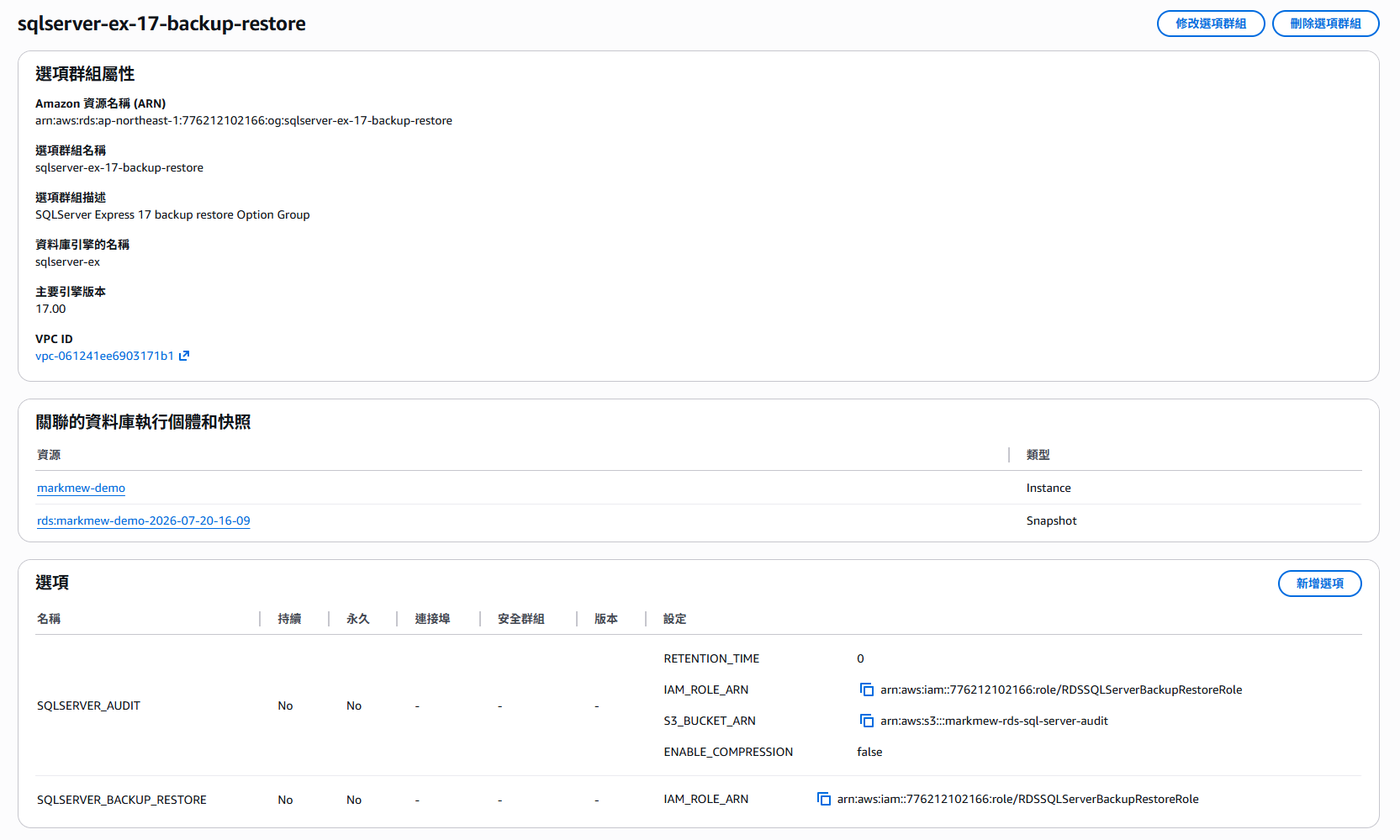
When adding the option, you usually configure these settings:
| Setting | Description |
|---|---|
IAM_ROLE_ARN | The IAM role ARN that lets RDS write to S3 |
S3_BUCKET_ARN | The S3 bucket or prefix ARN where audit records should be sent |
ENABLE_COMPRESSION | Whether to compress audit files; it is enabled by default |
RETENTION_TIME | How long audit files remain on the DB instance, in hours, up to 840 hours |
After configuration, the option group should show both SQLSERVER_BACKUP_RESTORE and SQLSERVER_AUDIT.
Adding
SQLSERVER_AUDITdoes not require a DB instance restart. After the option group status is active, you can create audits inside SQL Server and let RDS upload completed audit logs to S3.
Create Audits in SQL Server
After the option group is active, log in to SQL Server and create the audit and audit specification. RDS for SQL Server uses the native SQL Server Audit mechanism, but the file output location has RDS-specific restrictions.
When creating a server audit, keep these points in mind:
FILEPATHmust useD:\rdsdbdata\SQLAudit.MAXSIZEmust be between 2 MB and 50 MB.- Audit, server audit specification, and database audit specification names must not start with
RDS_. - Do not set
MAX_ROLLOVER_FILESorMAX_FILES. - Do not configure the DB instance to shut down when writing an audit record fails.
The following simplified example records failed login events:
1
2
3
4
5
6
7
8
9
10
11
12
13
14
15
16
17
18
19
20
21
22
23
USE master;
GO

CREATE SERVER AUDIT [audit_failed_login]
TO FILE (
  FILEPATH = N'D:\rdsdbdata\SQLAudit',
  MAXSIZE = 10 MB
)
WITH (
  QUEUE_DELAY = 1000,
  ON_FAILURE = CONTINUE
);
GO

CREATE SERVER AUDIT SPECIFICATION [audit_failed_login_spec]
FOR SERVER AUDIT [audit_failed_login]
ADD (FAILED_LOGIN_GROUP)
WITH (STATE = ON);
GO

ALTER SERVER AUDIT [audit_failed_login]
WITH (STATE = ON);
GO
This is only a demonstration. In production, decide which action groups to audit based on security requirements, data sensitivity, and system risk. Do not enable every possible event just to say “audit is enabled”; otherwise, storage volume, analysis, and alert noise will become the next problem.
Multi-AZ Considerations
If RDS for SQL Server uses Multi-AZ, pay special attention to how SQL Server Audit behaves across objects.
Database audit specifications are replicated to all nodes, but server audits and server audit specifications are not automatically replicated to the secondary node. If you need to continue capturing server-level audit events after failover, you must create the corresponding server audit or server audit specification with the same name and GUID after failover to the secondary.
This is why audit configuration should not stop at checking whether the option group is enabled. For production, include audit status after failover in your operational drills.
Password Rotation
A common database password smell is that everyone knows the password is important, but in practice it lives in a document, environment variable, CI/CD setting, or someone’s password manager. After enough time passes, nobody wants to change it because nobody knows which service will break.
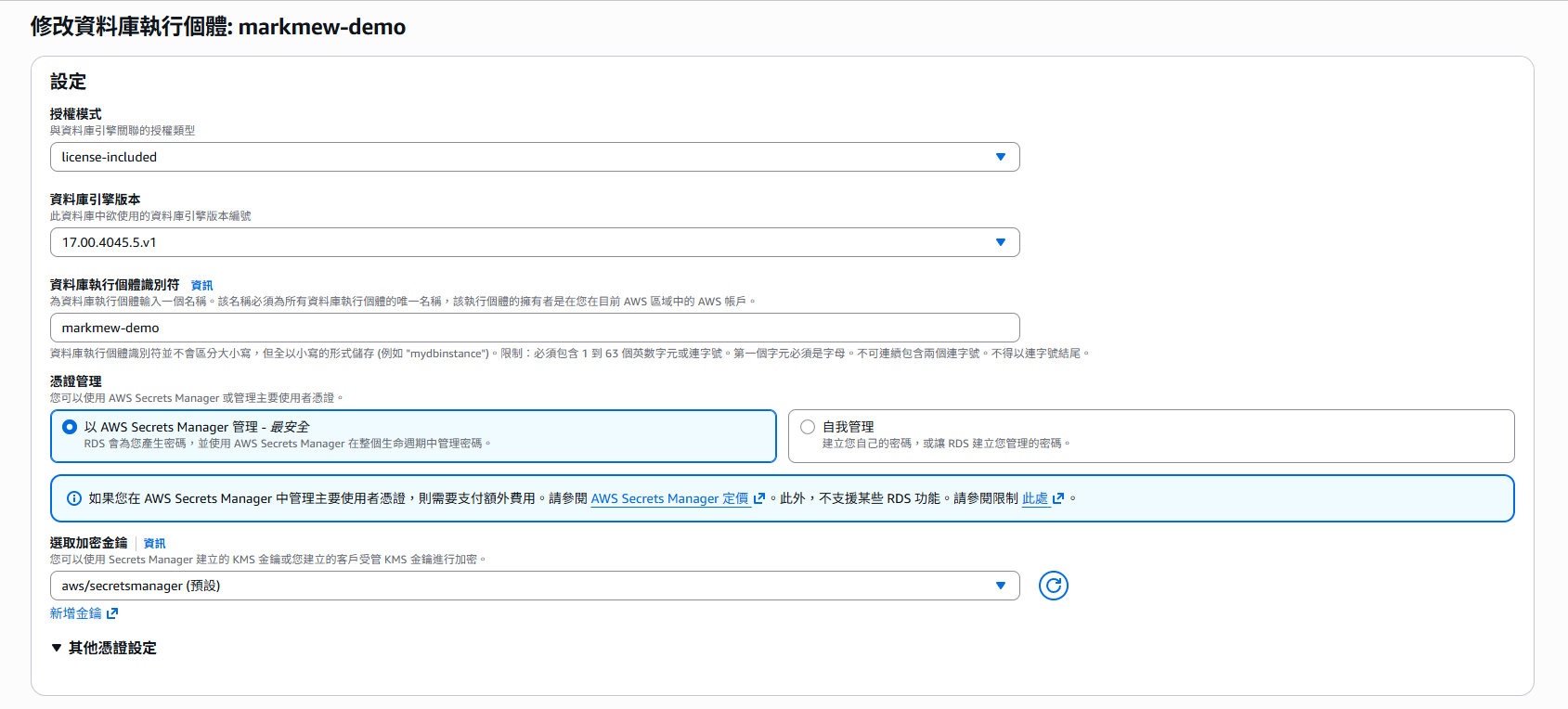
On RDS, the first step is to move the master user password into AWS Secrets Manager. When creating or modifying a DB instance, you can let RDS manage the master credentials. After it is enabled, RDS generates the password, stores it in Secrets Manager, and synchronizes the database-side master user password during rotation.
In the database edit screen, choose to manage credentials with AWS Secrets Manager, then RDS can manage the secret automatically.
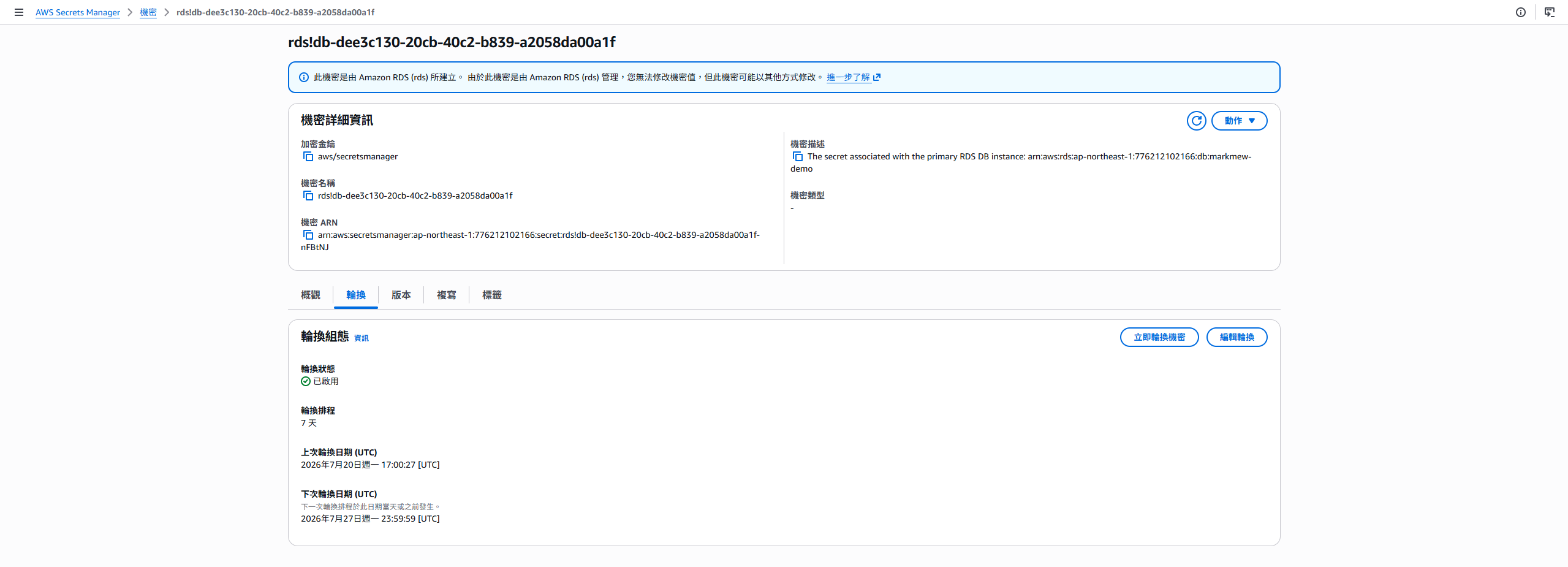
If you open Secrets Manager, you can see that a set of credentials has been created automatically and rotation has been configured.
Notes When Managing the Password Yourself
If you are not using RDS-managed master credentials yet and still manage the master password yourself, you can also change the password by modifying the DB instance. However, this approach depends more heavily on manual process discipline. Common problems include:
- The application configuration is not updated after the password changes.
- CI/CD, scheduled jobs, and operational tools still use the old password.
- Connection pools or long-lived connections are not tested for behavior after password change.
- The password was changed, but no complete change record or approval trail exists.
Also, when you create or modify the master user password for RDS for SQL Server, RDS might not enforce the internal SQL Server password policy for you. Even if the operation succeeds, still use a strong password, and pair password management with audit and event notifications.
Conclusion
The basic RDS for SQL Server setup only gets the database platform running. To make it closer to production, you need to add traceability and rotation.
SQL Server Audit addresses after-the-fact traceability and compliance evidence: who did what, which events should be recorded, where audit files are stored, and who can read them. Secrets Manager and password rotation address credential governance: passwords no longer live in documents and manual workflows, but become resources that can be permission-controlled, logged, and rotated.
These settings do not feel as immediately satisfying as creating a database, but they are what decide whether a database can safely enter production. Being able to connect is the first step. Being auditable, rotatable, and testable is what makes it operable.
References
- Amazon RDS for SQL Server: SQL Server Audit
- Amazon RDS for SQL Server: Adding SQL Server Audit to the DB instance options
- Amazon RDS for SQL Server: Using SQL Server Audit
- Amazon RDS for SQL Server: Viewing audit logs
- Amazon RDS for SQL Server: Manually creating an IAM role for SQL Server Audit
- Amazon RDS: Password management with Amazon RDS and AWS Secrets Manager
- Amazon RDS for SQL Server: Password considerations for the master login
- AWS Secrets Manager: Rotate AWS Secrets Manager secrets