AWS SQL Server Setup Tutorial: A Complete Walkthrough from Creation to Connection
Walk through creating RDS for SQL Server on AWS, including subnet groups, parameter groups, option groups, storage, connectivity, backups, and Terraform.

SQL Server is a common relational database choice in enterprise systems. In on-premises environments or virtual machines, a DBA or system administrator usually installs SQL Server, tunes the operating system, plans backups, configures monitoring, and then hands the database over to applications.
On AWS, you do not necessarily need to carry all of that yourself. If you do not need special OS-level access, unsupported SQL Server features, or a custom licensing model, Amazon RDS for SQL Server is often easier to operate. RDS helps manage the underlying host, storage, backups, maintenance windows, monitoring integrations, and high availability capabilities, so the team can spend more time on data modeling, query performance, access control, and restore drills.
This article walks through creating an RDS for SQL Server DB instance in two ways:
- Creating it with the AWS Management Console.
- Creating the basic resources with Terraform.
The examples are aimed at development or test environments. For production, you still need to adjust the design based on data volume, RPO, RTO, security requirements, and availability requirements.
Supported RDS for SQL Server versions change over time with AWS and Microsoft support policies. During implementation, use the AWS Management Console in your Region or
aws rds describe-db-engine-versionsas the source of truth.
Things to Confirm Before You Start
Before creating RDS, confirm the following items first:
| Item | What to confirm |
|---|---|
| VPC and subnets | Which VPC the DB should use, and whether it should only be placed in private subnets |
| Security Group | Which sources can connect to SQL Server port 1433 |
| SQL Server version | Which SQL Server major/minor version the application supports |
| Edition | Feature and licensing differences among Express, Web, Standard, and Enterprise |
| Storage capacity | Initial capacity, maximum capacity, IOPS, throughput, and growth rate |
| Backups | Automated backup retention period, and whether PITR or AWS Backup is required |
| Maintenance window | When maintenance or version updates can be applied |
| Parameters and options | Whether a custom DB parameter group or option group is required |
These may look like small prerequisites, but database incidents often start with something decided too casually: the wrong network placement, the wrong version, a backup strategy that does not meet requirements, or a security group that is too open.
Method 1: Create It with the AWS Management Console
Open the RDS page in the AWS Management Console.
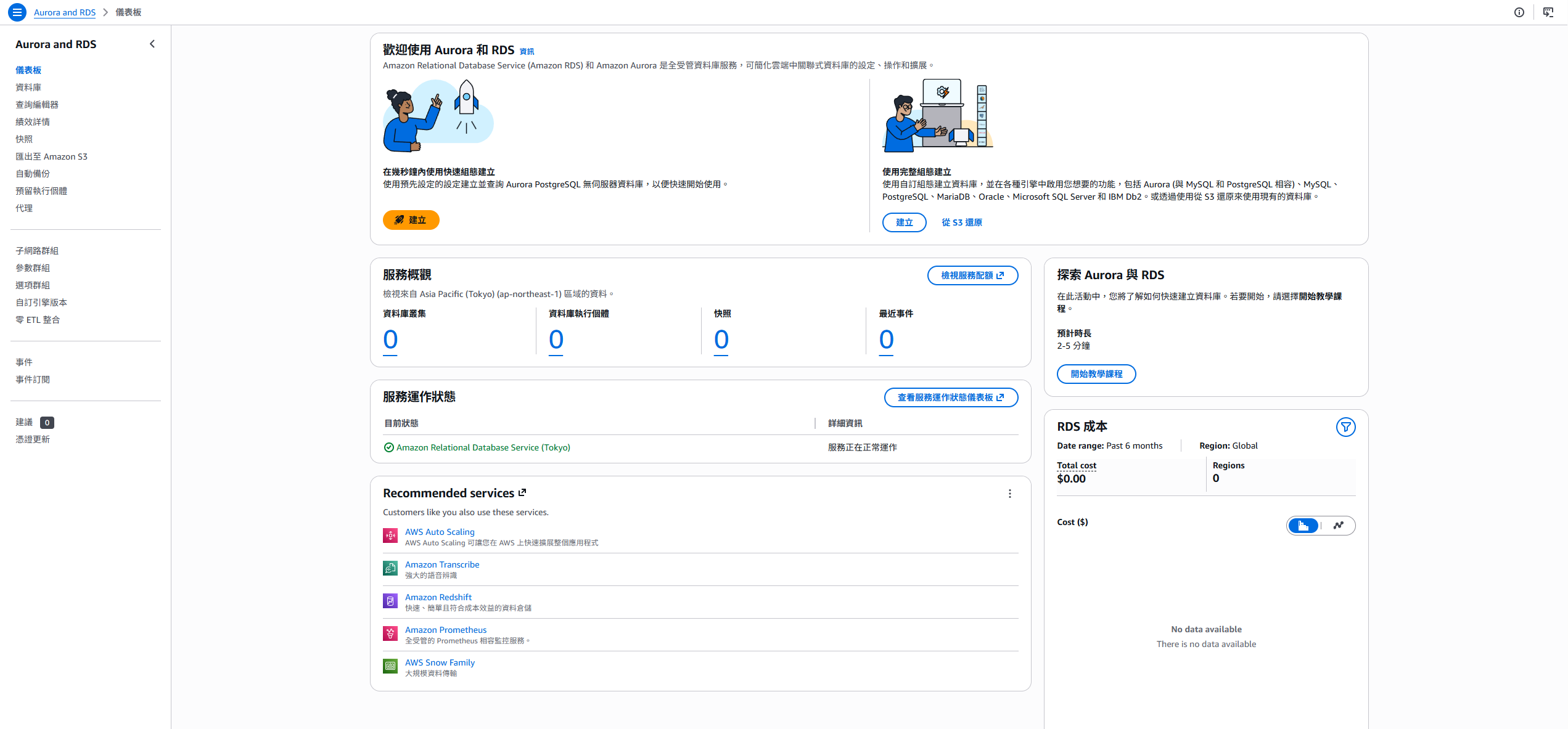
The RDS creation flow itself is not difficult, but several group concepts are easy to mix up at first:
- DB subnet group: decides which subnets RDS can use.
- DB parameter group: manages database engine parameters.
- Option group: enables engine-specific features, such as SQL Server native backup and restore.
- Security Group: controls who can connect to the DB.
The following sections create these resources in order.
Create a DB Subnet Group
If this is your first RDS setup, you usually start by planning a DB subnet group.
Even if a VPC already has multiple subnets, not every subnet is suitable for a database. In general, a database should not be placed directly in a public subnet and should not be directly reachable from the internet. A common approach is to place RDS in private subnets across multiple Availability Zones, then allow connections only from the application Security Group or internal network ranges.
If this is a new environment, the subnet group list might be empty. Choose the create button to start.
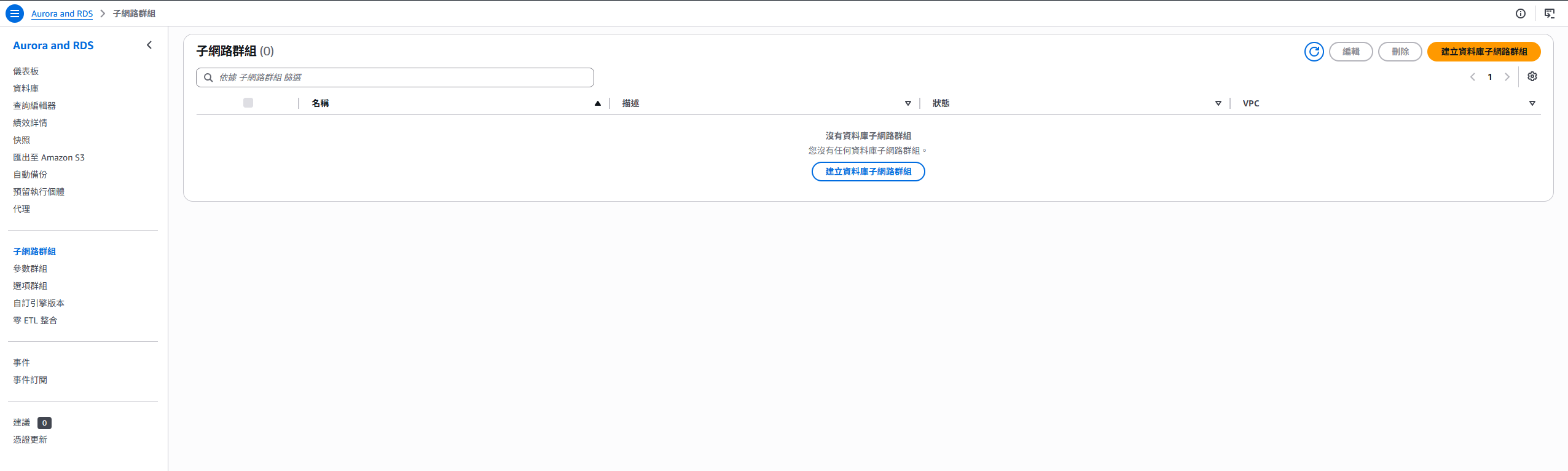
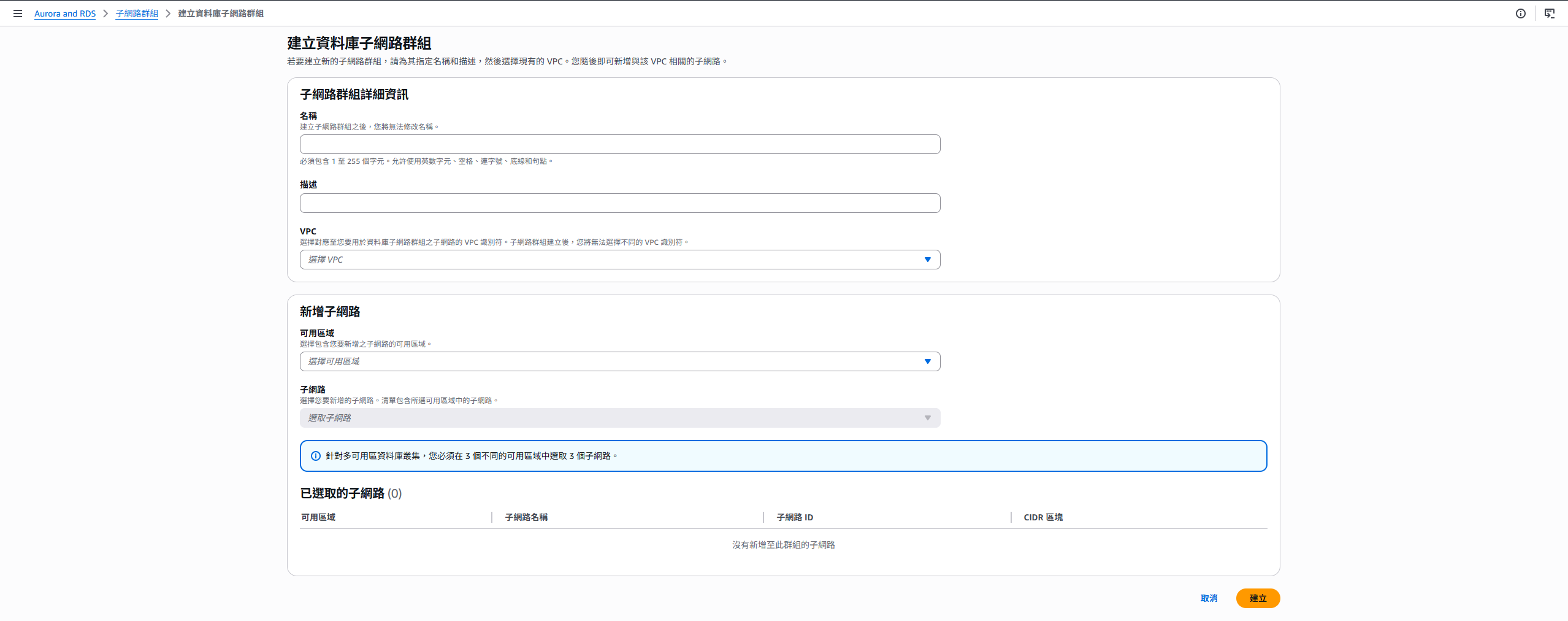
On the creation page, choose the VPC first. After selecting the VPC, you can select Availability Zones and subnets under that VPC.
I recommend choosing private subnets in at least two different Availability Zones. This better matches RDS high availability design if you enable Multi-AZ later, or when maintenance and failover scenarios occur.
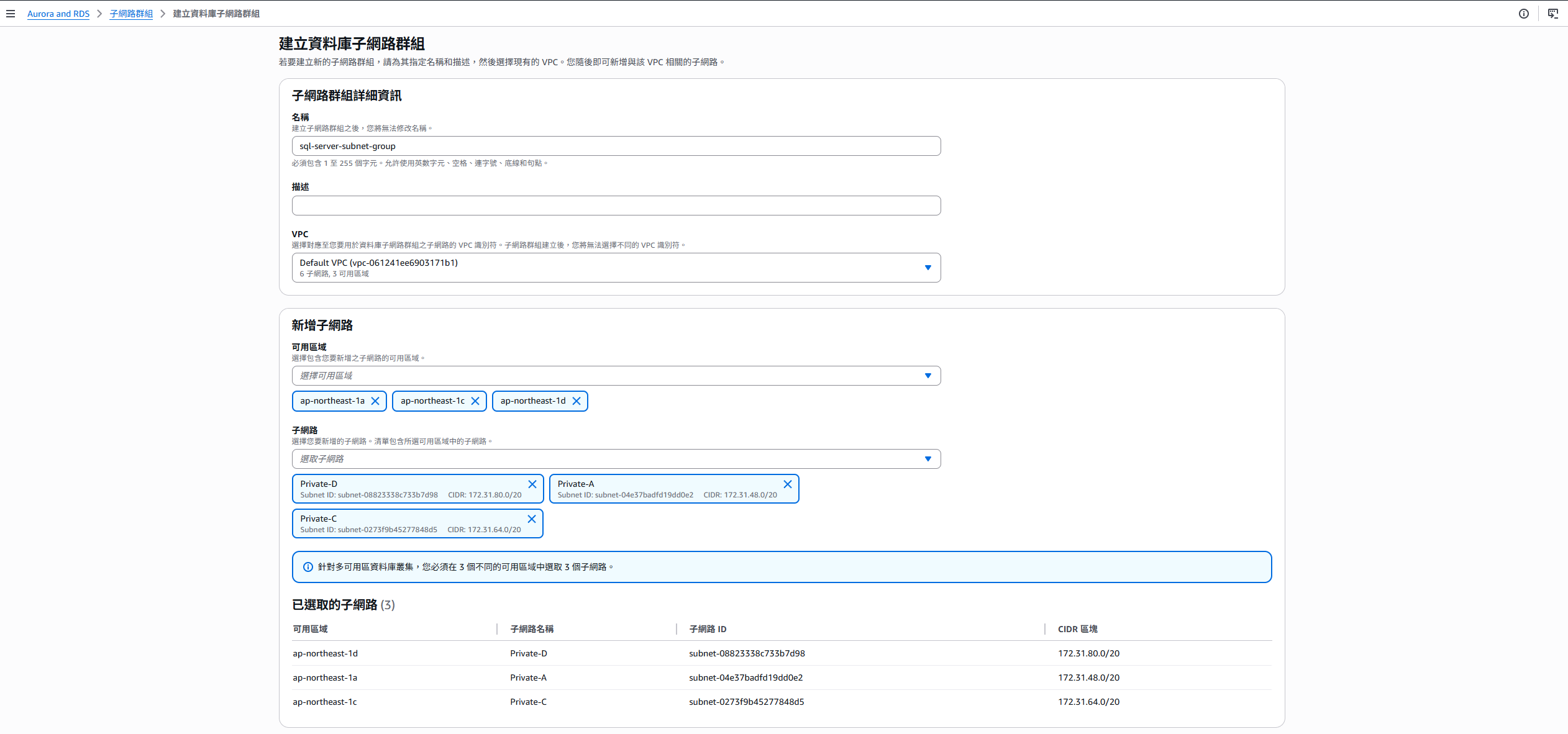
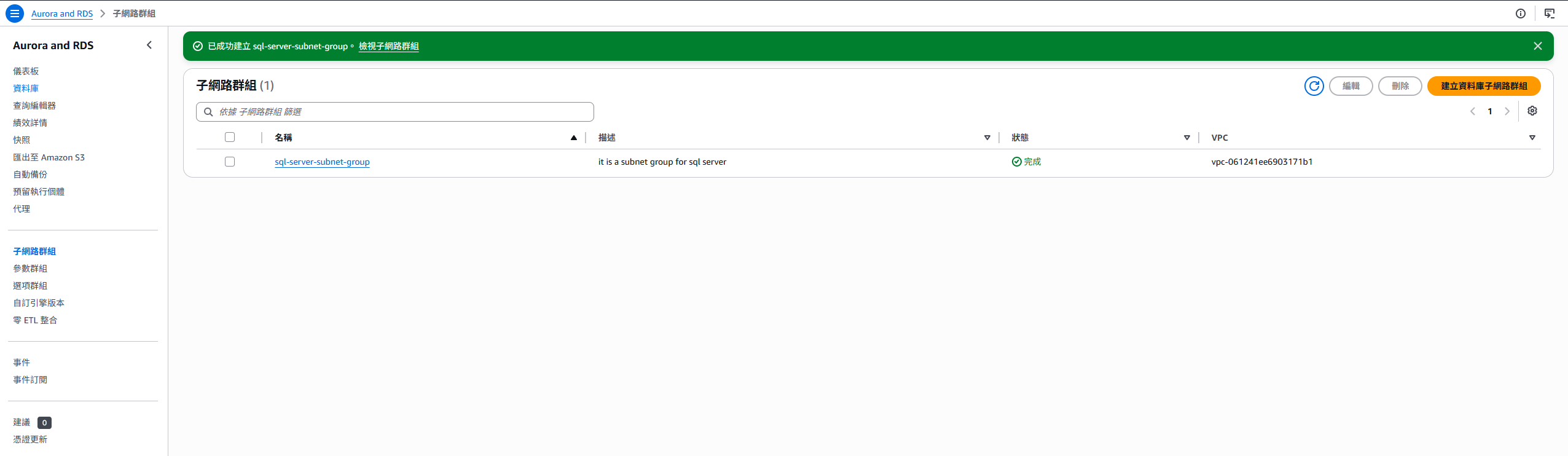
After it is created, the subnet group appears in the list.
Create a DB Parameter Group
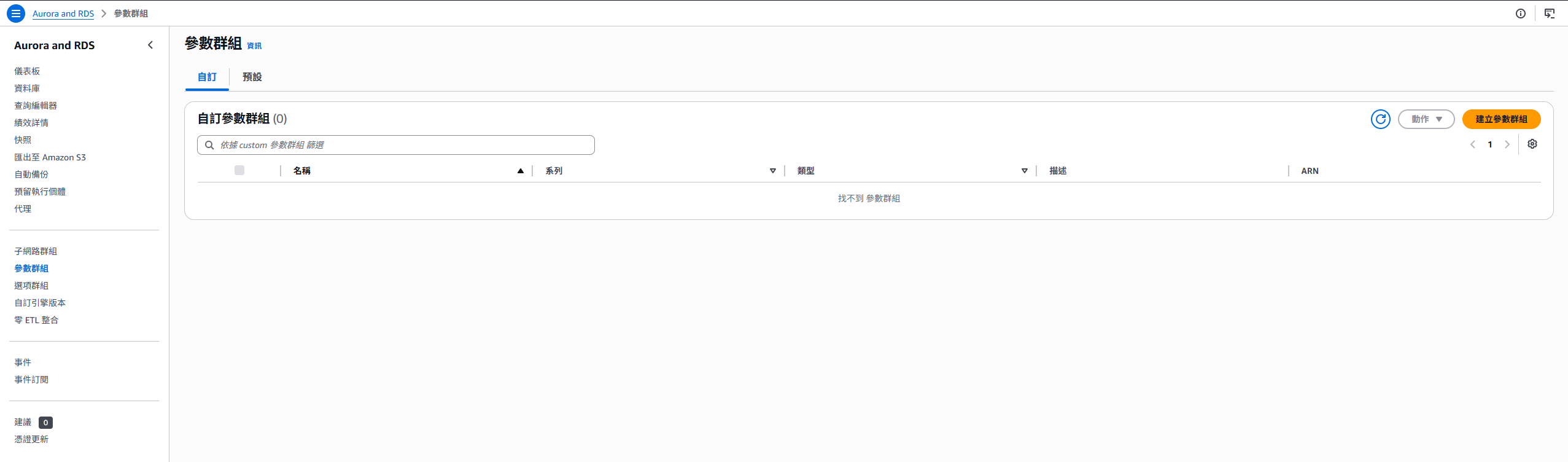
Every database engine has parameters that can be tuned. With a self-managed SQL Server, you might adjust these through SQL Server Management Studio, T-SQL, or host-level configuration. In RDS, you cannot log in to the underlying OS, and you do not get full sysadmin privileges. Instead, you manage the parameters that RDS allows through a DB parameter group.
If you do not have any custom parameter groups yet, the list will be empty.
Choose Create to open the parameter group creation page.
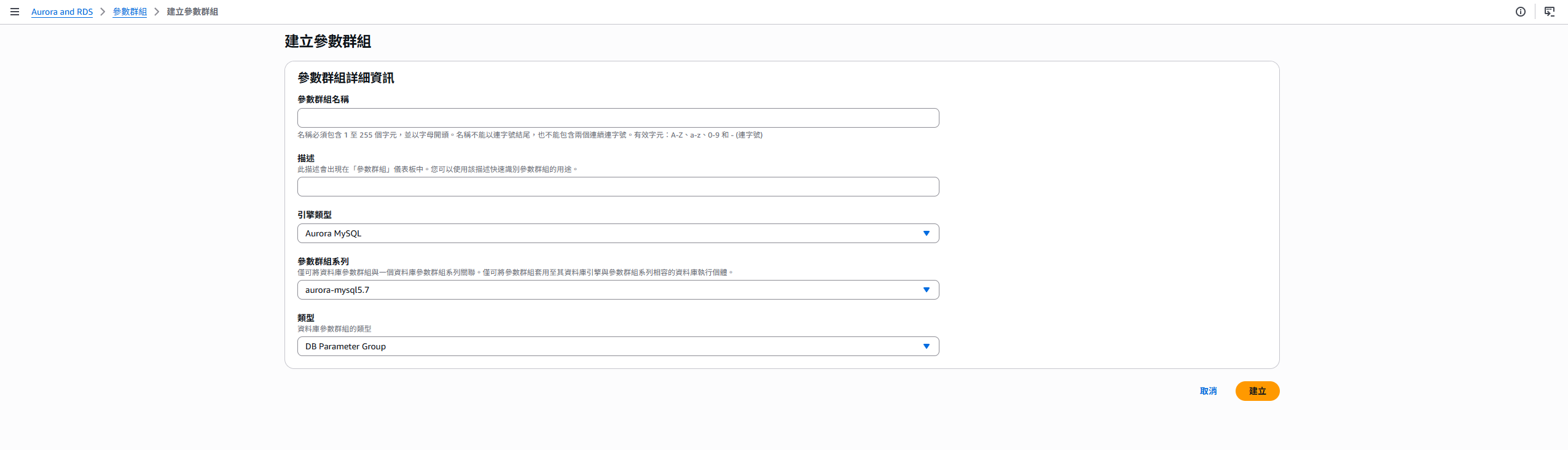
A parameter group is tied to the database engine and major version. In other words, SQL Server 2019 and SQL Server 2022 require compatible parameter group families. When creating one, choose the family that matches the RDS version you plan to create.
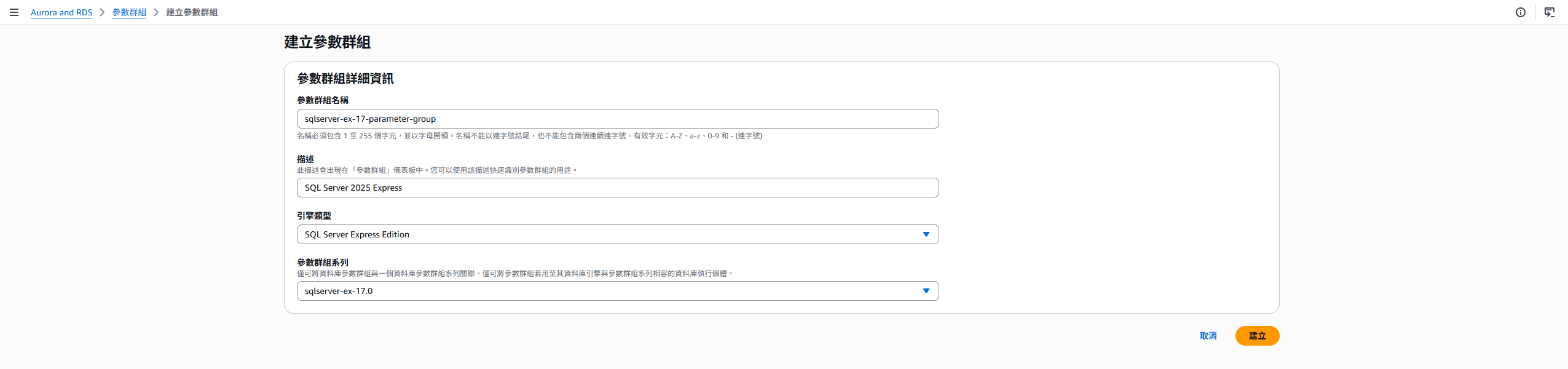
After it is created, it appears in the parameter group list.
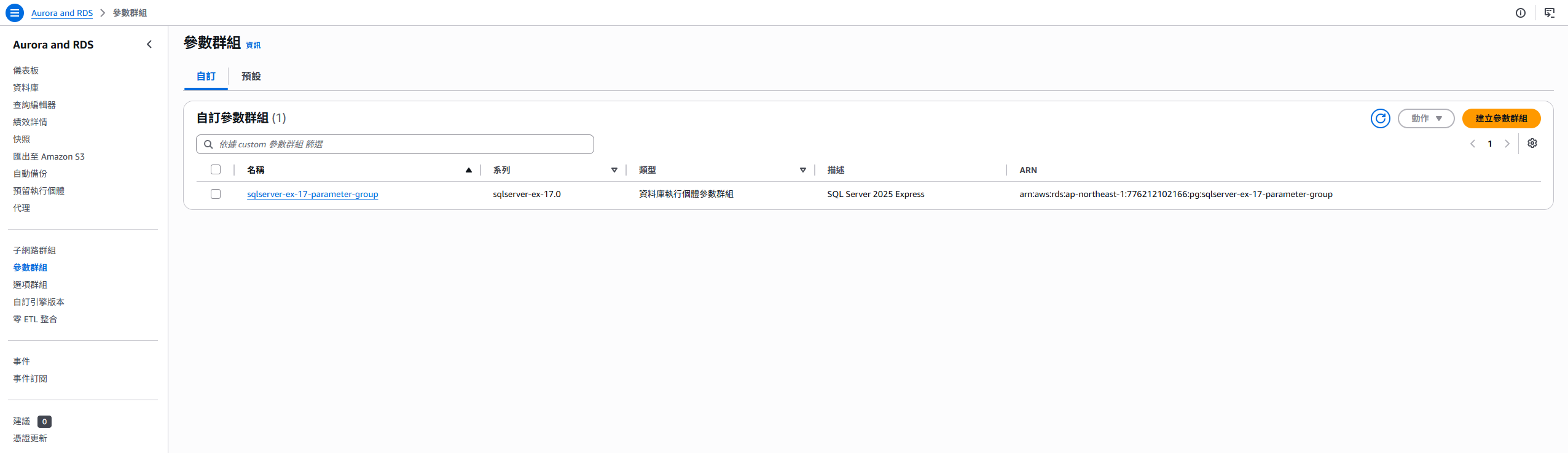
Some parameter changes can be applied immediately, while others require a DB reboot. For production, test changes in a non-production environment first and confirm the maintenance window.
Create the Database
After the subnet group and parameter group are ready, you can create the RDS DB instance. If this database also needs native backup and restore, prepare the option group, S3, and IAM settings described later.
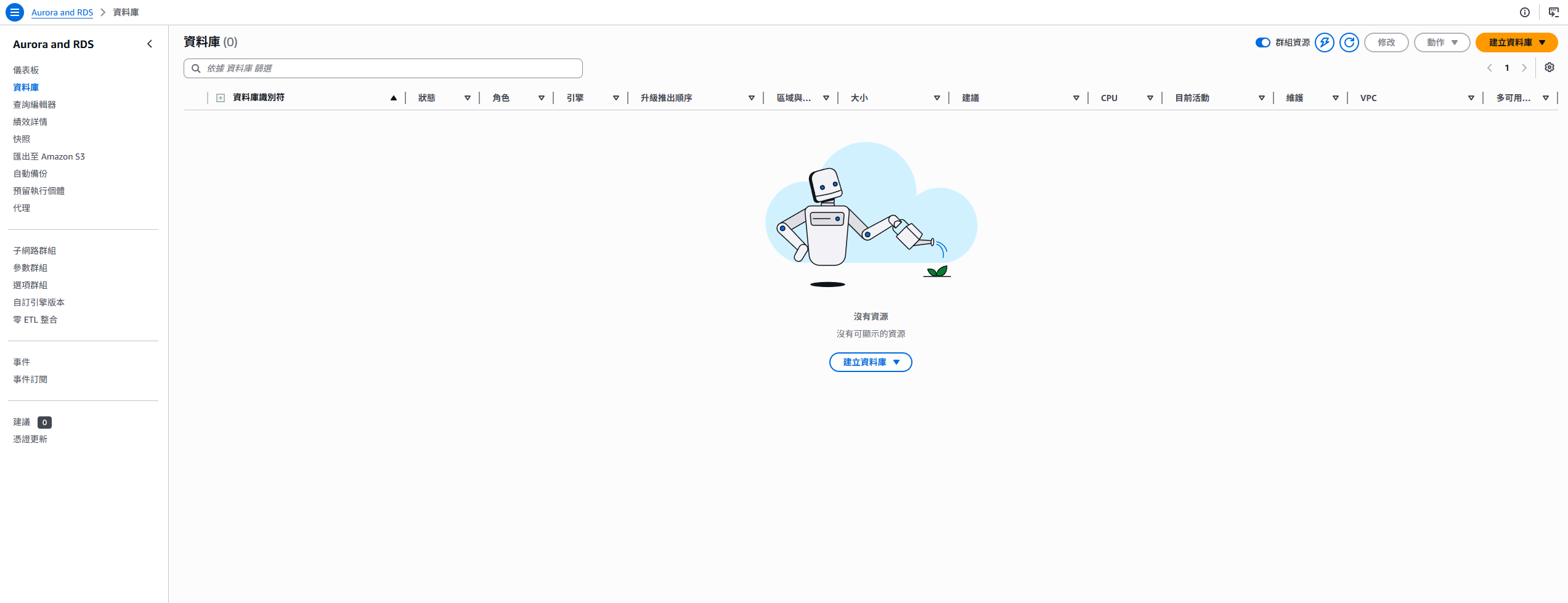
Choose Create database. The console shows many settings. I recommend choosing the full configuration flow instead of an overly simplified default path, because the database network, security, backups, and maintenance window should all be explicit.
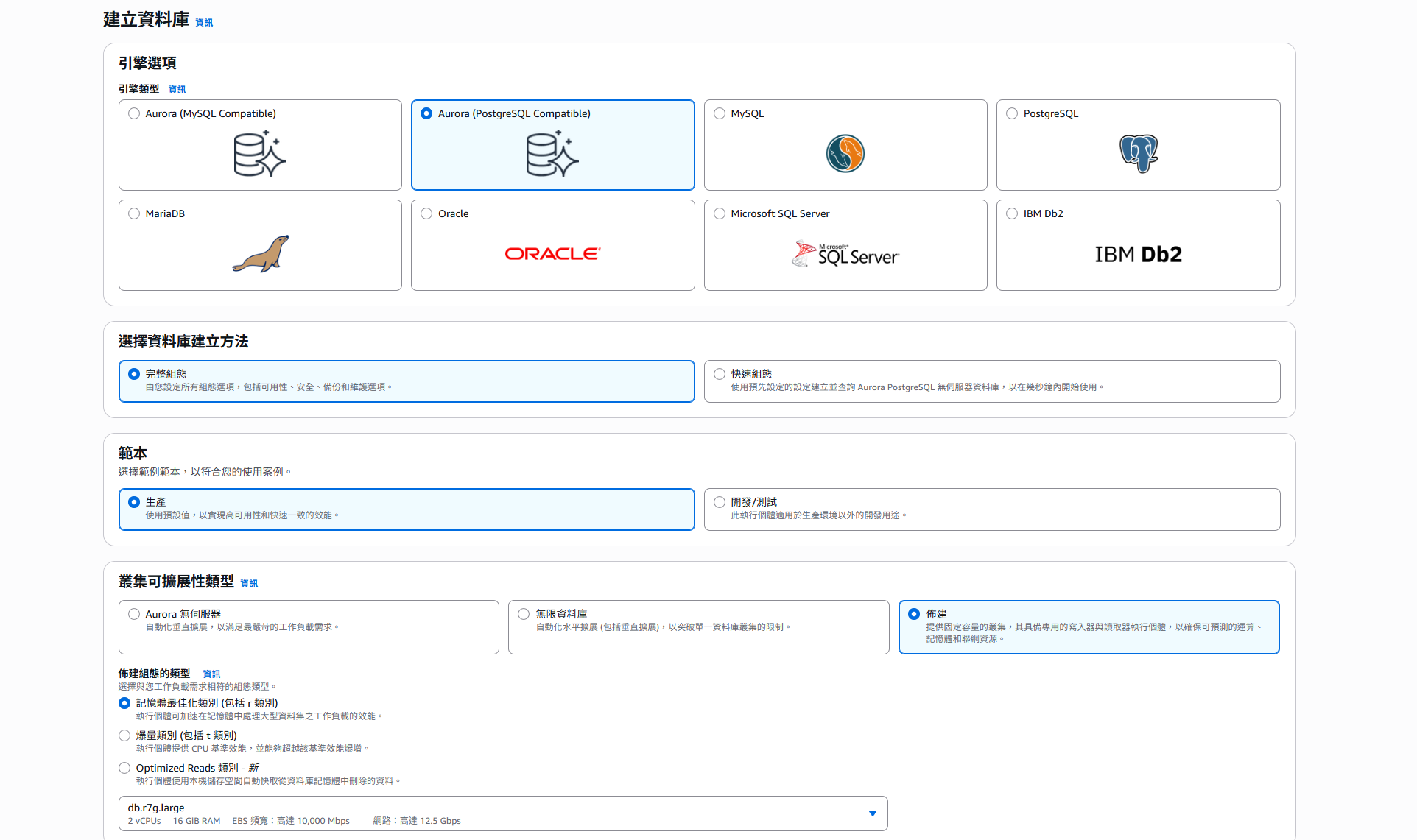
Example settings:
1
2
3
4
5
6
7
8
9
10
11
12
13
14
15
16
17
18
19
20
21
22
23
24
25
26
27
28
Engine options
> SQL Server

Templates
> Dev/Test

Settings
> Database management type
>> Amazon RDS

> Edition
>> SQL Server Express Edition

> Engine version
>> Choose a version currently supported by the console, such as SQL Server 2022

> DB instance identifier
>> sql-server-express-demo

Credentials settings
> Master username
>> admin

> Credentials management
>> Self managed, or Secrets Manager depending on your company standard

> Master password
>> Use a strong password
This example uses Express Edition for demonstration and testing. For production, choose the proper edition based on feature requirements, licensing, database size, and performance requirements.
For the instance class, a development or test environment can start with a smaller t class, for example:
1
2
3
DB instance class
> Burstable classes
>> db.t3.small
For production, do not look only at CPU and memory. SQL Server workloads are often affected by IOPS, throughput, connection count, TempDB usage, query patterns, and locking behavior. Use monitoring data from the existing environment to estimate the required specifications.
Configure Storage
Storage settings require special attention. Besides the initial capacity, consider whether to enable storage autoscaling and whether you need to specify IOPS or throughput.
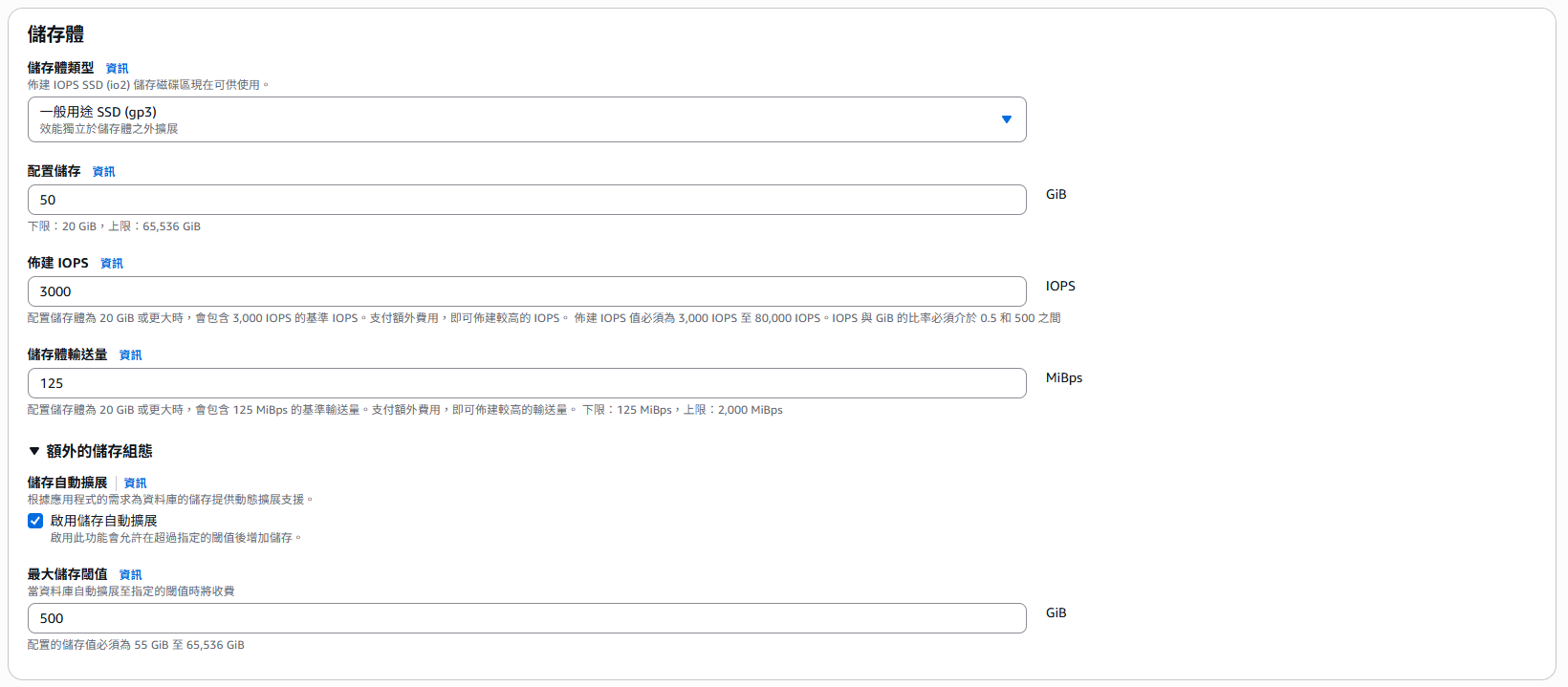
At minimum, confirm:
- Whether the initial capacity is enough for current data and short-term growth.
- Whether the maximum storage threshold matches budget and risk control.
- Whether gp3 needs specified IOPS or throughput.
- Whether a CloudWatch alarm should be created for
FreeStorageSpace.
Storage autoscaling can reduce the risk of running out of database space, but it is not a replacement for capacity planning. RDS storage cannot be directly reduced after it is expanded. If growth is uncontrolled, it will still become a cost and governance issue.
Configure Connectivity and Security Groups
In the connectivity settings, choose the DB subnet group created earlier.
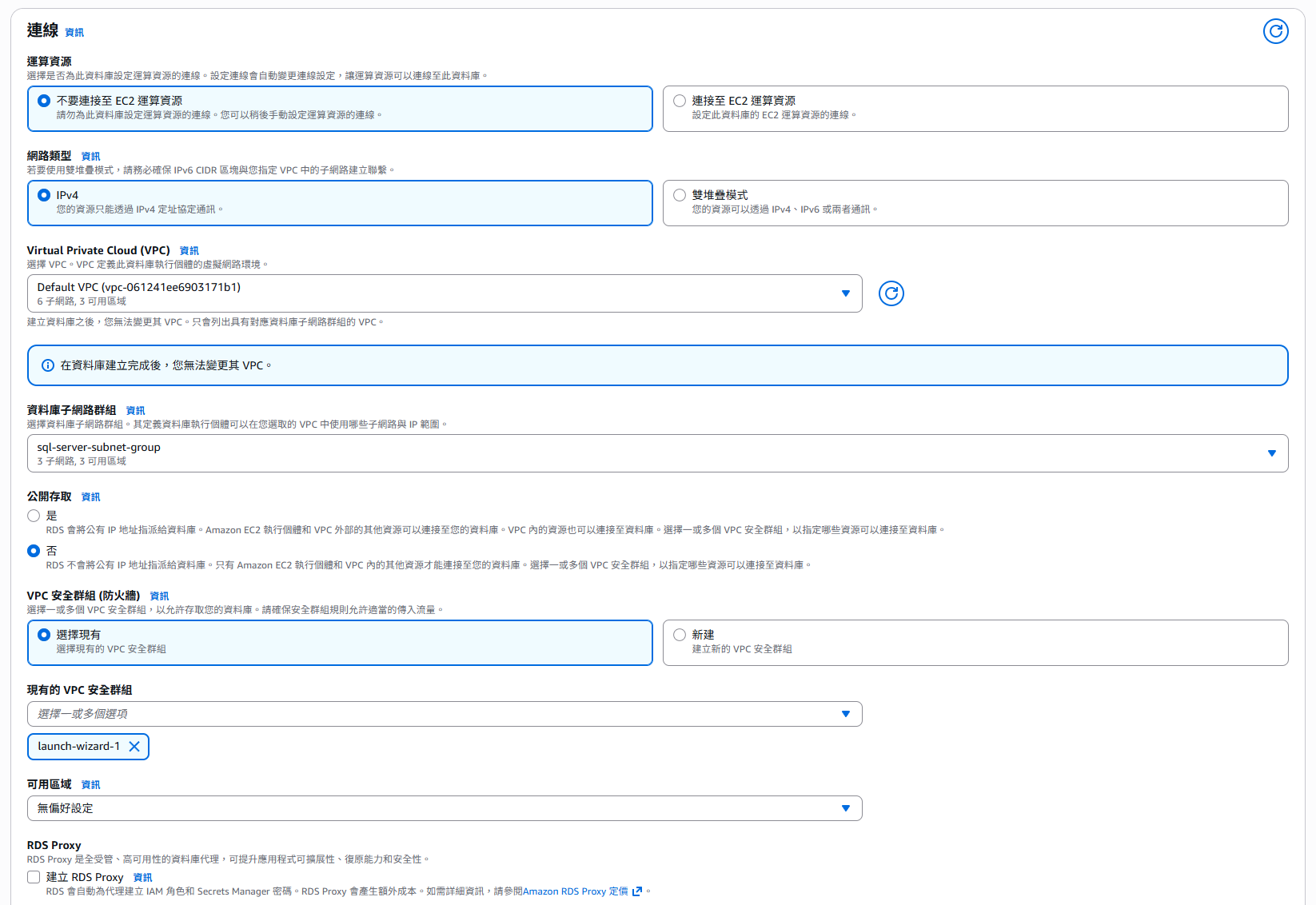
Do not open the Security Group to 0.0.0.0/0. SQL Server uses port 1433 by default. Allow only necessary sources, such as:
- The Security Group of the application servers.
- The Security Group of a bastion host or VPN.
- Internal company network ranges, only with stricter network controls.
For development or testing, you might temporarily allow 1433 from the VPC CIDR. For production, Security Group referencing is usually better because the rule follows the application resources instead of opening an entire network range.
Configure Monitoring, Backups, and Maintenance
For monitoring, you can start with the default CloudWatch metrics. If you need more detailed OS-level metrics, enable Enhanced Monitoring. If you need to inspect DB load, wait events, and SQL-level bottlenecks, enable Performance Insights or CloudWatch Database Insights.
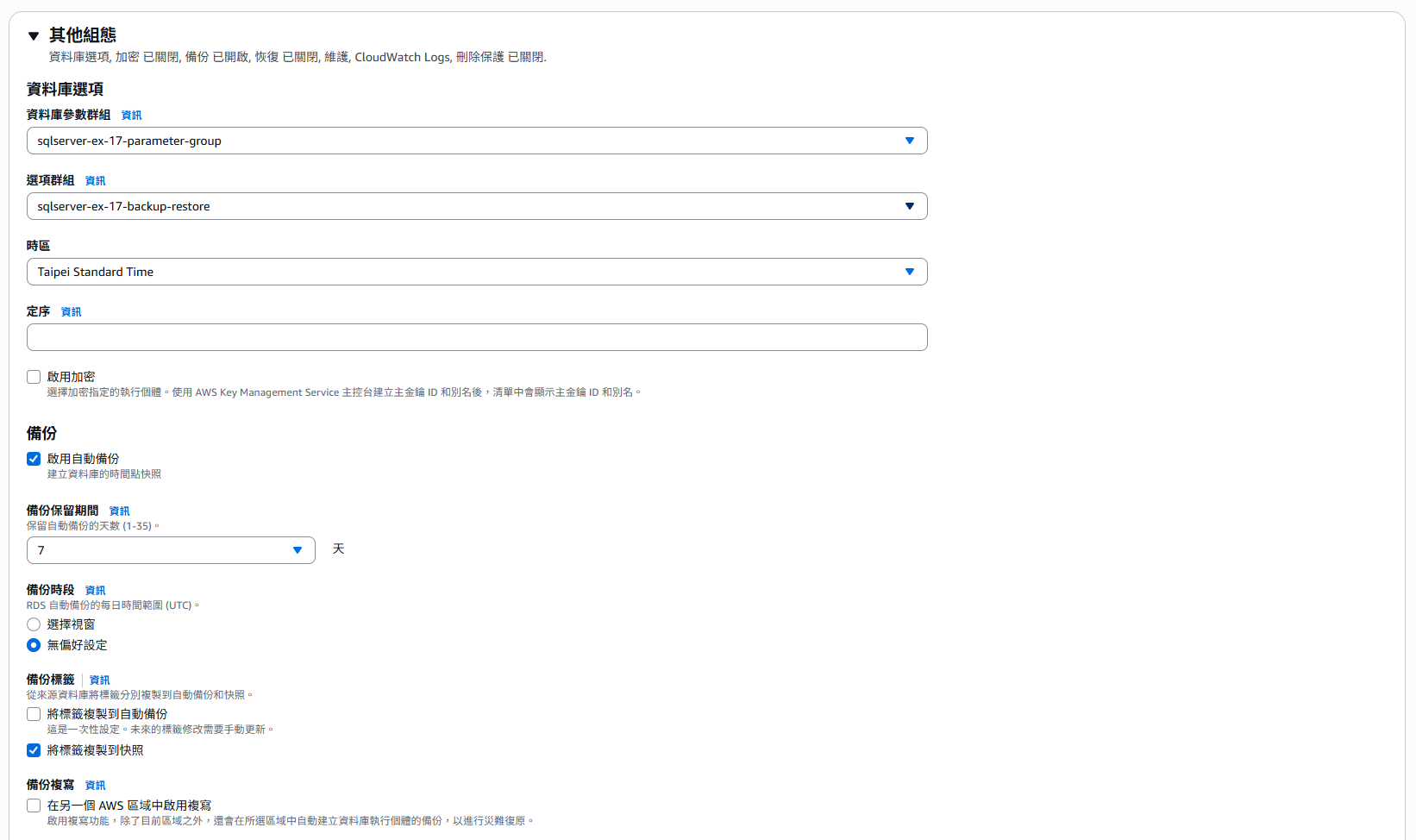
Also confirm the following settings:
- Whether the parameter group created earlier is selected.
- If native backup and restore is needed, whether the corresponding option group is selected.
- Whether the backup retention period meets requirements.
- Whether the backup window avoids peak traffic.
- Whether the maintenance window matches the operations schedule.
- Whether deletion protection should be enabled.
- Whether time zone and collation match the application requirements.
Time zone and collation are not always easy to change after creation. Collation especially affects sorting, comparisons, and case sensitivity. For production, align it with the application, reporting system, and existing database settings first.
After confirming the settings, create the DB instance and wait until its status becomes Available. Creation time depends on the DB instance class, storage settings, and current service conditions. In test environments, it often takes several minutes to a little over ten minutes.
After creation, get the endpoint and test the connection with SQL Server Management Studio, Azure Data Studio, DBeaver, or the application. If automated backups are enabled, RDS handles them according to your configuration. You do not need to trigger the first backup manually.
The connection information usually looks like this:
1
2
3
4
5
Server / Host: <rds-endpoint>
Port: 1433
User: admin
Password: The password configured during creation
Database: Specify one if needed, or connect to the default database first
If you cannot connect, check these items first:
- Whether RDS is Available.
- Whether the client is in an allowed network location.
- Whether the Security Group inbound rule allows the source to connect to
1433. - Whether the route table, NACL, VPN, or bastion host is configured correctly.
- Whether the SQL Server username and password are correct.
- Whether DNS can resolve the RDS endpoint.
Configure Backup and Restore (Optional)
If this RDS for SQL Server DB instance needs native backup and restore later, meaning you want to put SQL Server .bak files in S3 and restore them to RDS, or back up .bak files from RDS to S3, you need additional S3, IAM role, and option group settings.
This feature requires three components to work together:
| Component | Purpose |
|---|---|
| S3 bucket | Stores SQL Server .bak backup files |
| IAM role and policy | Allows RDS to read from and write to the specified S3 bucket |
| Option group | Adds SQLSERVER_BACKUP_RESTORE and specifies the IAM role ARN |
The setup order can look like this:
- Create an S3 bucket dedicated to SQL Server backup files.
- Create an IAM role whose trust relationship allows
rds.amazonaws.comto assume the role. - Attach an S3 permissions policy to the IAM role.
- Add
SQLSERVER_BACKUP_RESTOREto the SQL Server option group. - Set the IAM role ARN in the option setting
IAM_ROLE_ARN. - Create or modify the RDS DB instance and apply this option group to SQL Server.
The S3 bucket should be in the same Region as the RDS DB instance, because RDS for SQL Server native backup and restore does not support an S3 bucket in a different Region. If the backup file comes from another Region, copy it to the Region where RDS is located first, for example with S3 Replication or another transfer process.
SQLSERVER_BACKUP_RESTOREandS3_INTEGRATIONare easy to confuse. The former is the option group option used for.baknative backup and restore. The latter transfers files between S3 and theD:\S3\folder on the RDS host. This article mainly demonstrates native backup and restore, so the core setting is theSQLSERVER_BACKUP_RESTOREoption in the option group.
Create an Option Group
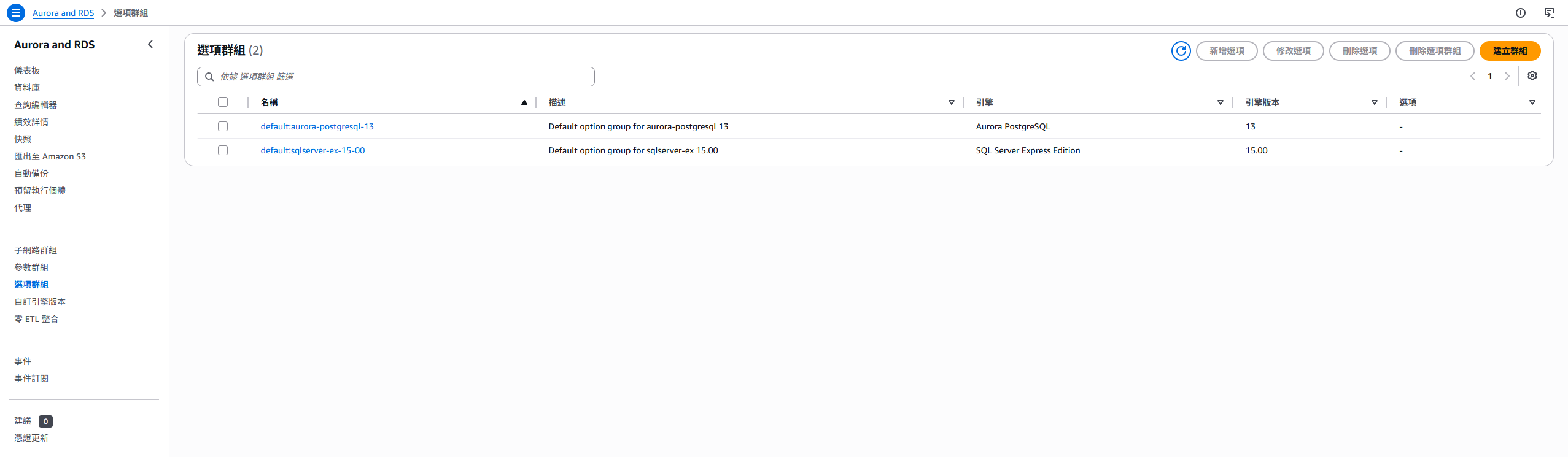
An option group is one of the easier RDS settings to overlook. It is not a general database parameter. It is used to enable additional features for specific database engines.
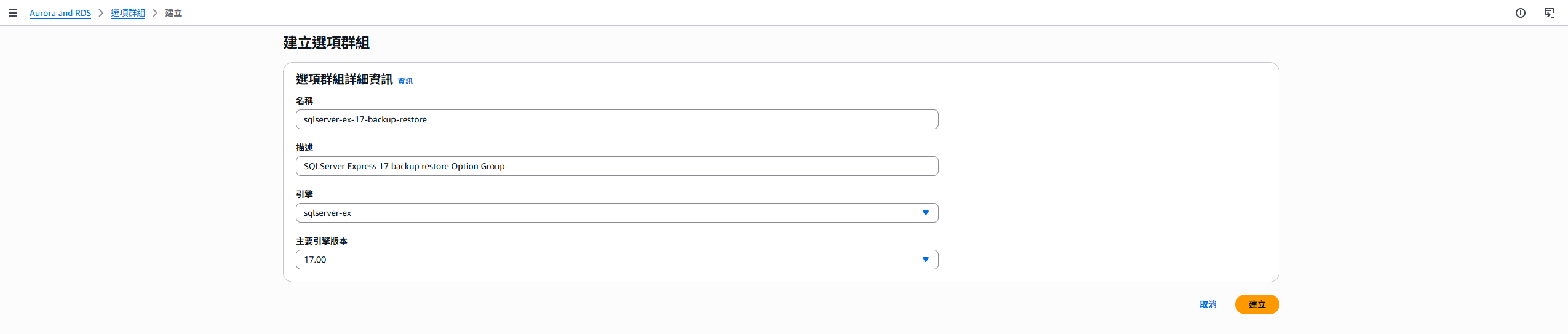
For SQL Server, if you want to use native backup and restore to back up .bak files to S3 or restore from S3, you need to add the SQLSERVER_BACKUP_RESTORE option to the option group and let RDS use an IAM role with S3 permissions.
When creating an option group, choose the SQL Server engine and the matching version.
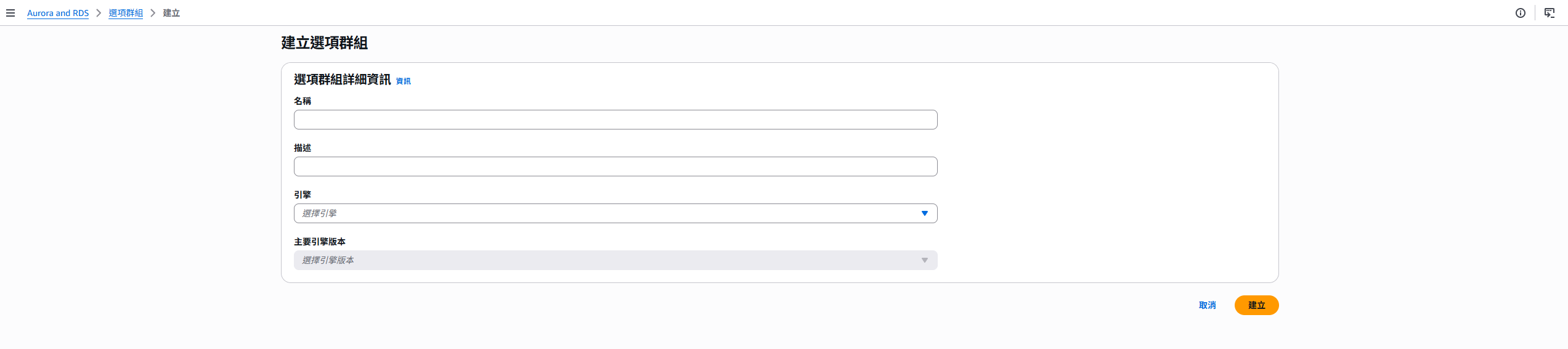
If you do not have the IAM role yet, you can first create an empty option group. After the S3 bucket, IAM policy, and IAM role are ready, come back and add SQLSERVER_BACKUP_RESTORE, then set IAM_ROLE_ARN in the option setting.
After it is created, the option group appears in the list.
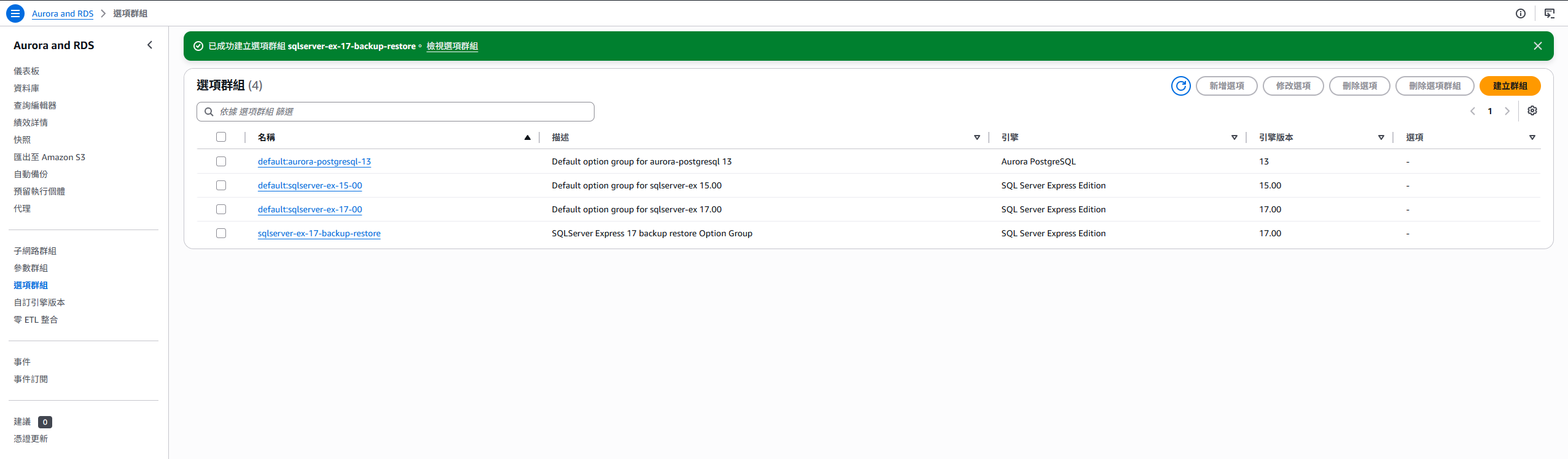
If you only use RDS automated backups and PITR, you do not necessarily need SQL Server native backup and restore. You need this option mainly when importing or exporting
.bakfiles, or when integrating with an existing SQL Server backup workflow.
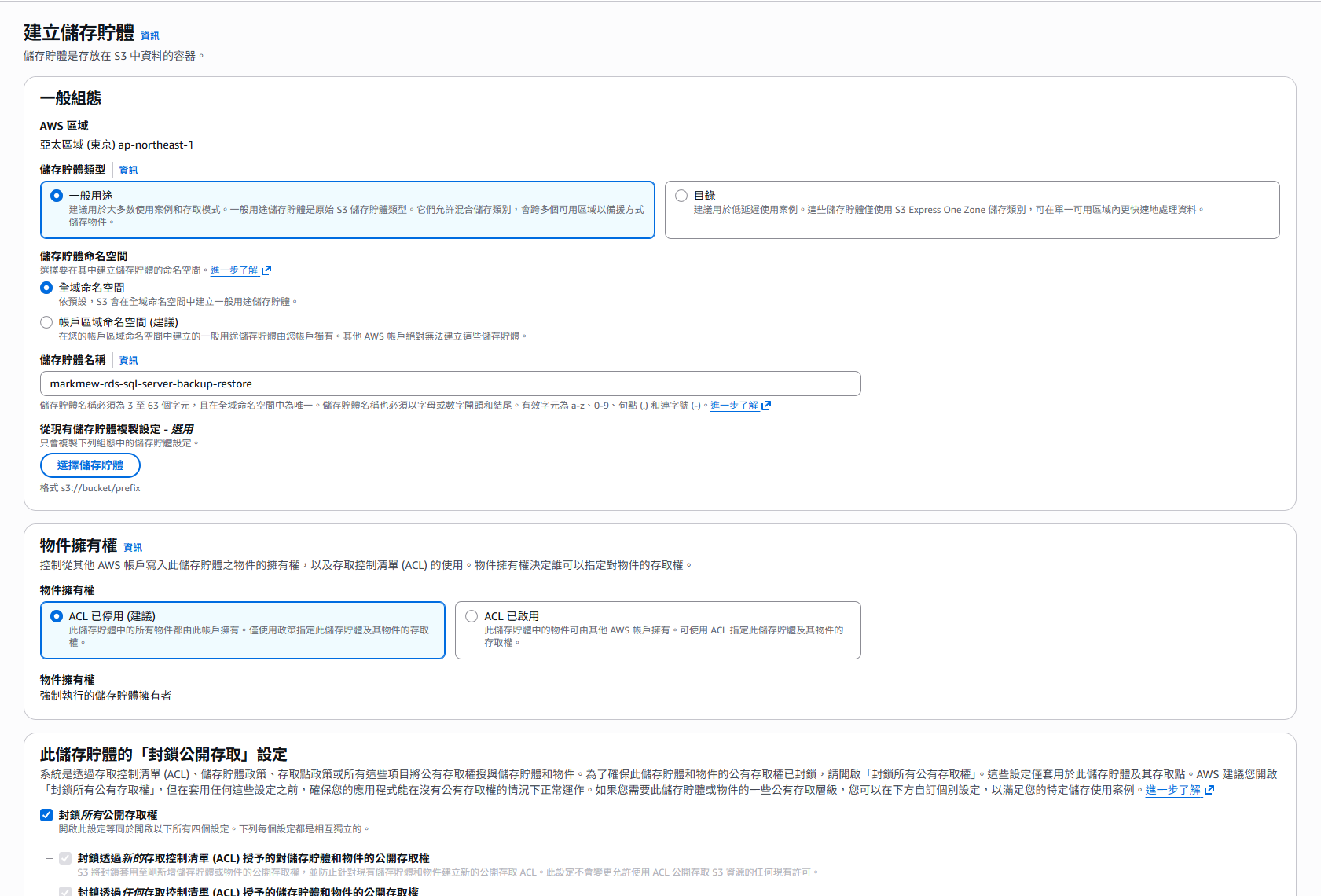
Create an S3 Bucket
Create an S3 bucket dedicated to SQL Server .bak files. The bucket should be in the same Region as the RDS DB instance, because RDS for SQL Server native backup and restore does not support an S3 bucket in a different Region.
If the backup file is already in another Region, usually you copy it to the Region where RDS is located first, using S3 Replication or another synchronization method, and then let RDS import or restore it.
Create an IAM Policy to Access the S3 Bucket
Before creating the IAM role, I recommend creating the IAM policy first. This lets you search for and attach the policy directly when creating the role, instead of going back to add permissions later.
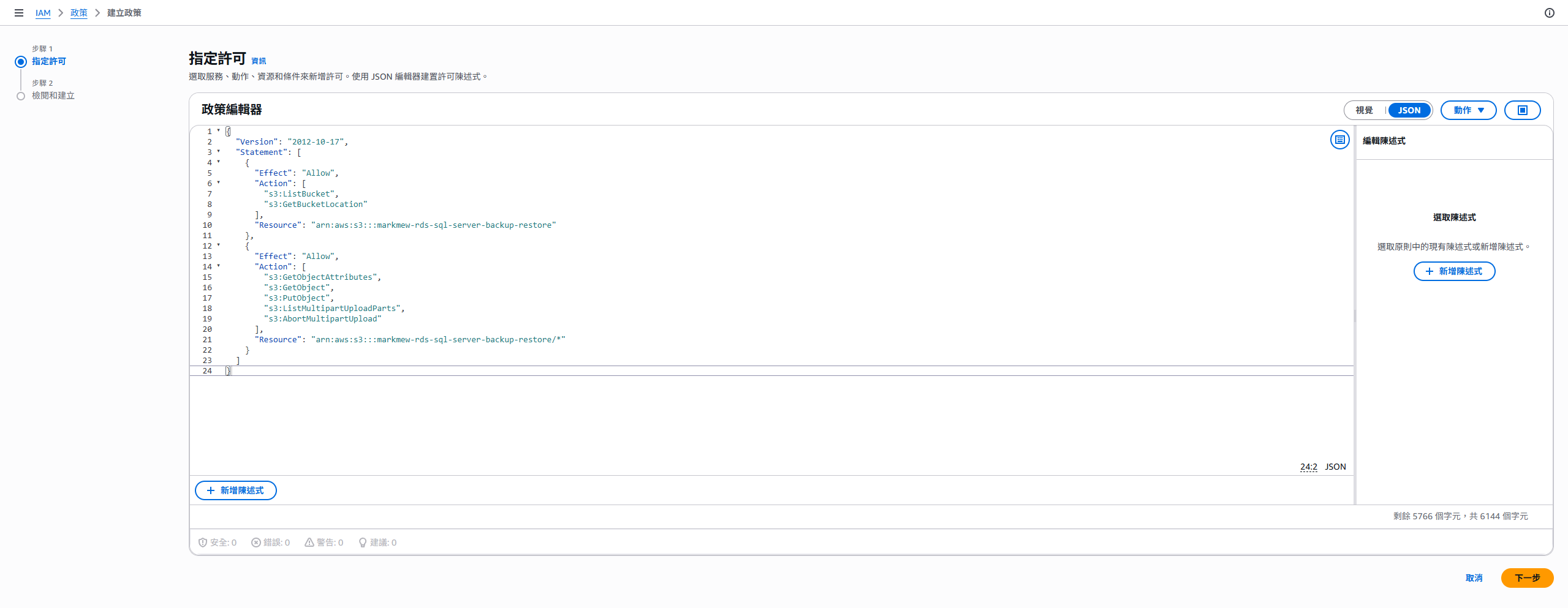
The S3 permissions policy must at least allow RDS to list the bucket, get the bucket location, and read and write backup objects:
1
2
3
4
5
6
7
8
9
10
11
12
13
14
15
16
17
18
19
20
21
22
23
24
{
  "Version": "2012-10-17",
  "Statement": [
    {
      "Effect": "Allow",
      "Action": [
        "s3:ListBucket",
        "s3:GetBucketLocation"
      ],
      "Resource": "arn:aws:s3:::markmew-rds-sql-server-backup-restore"
    },
    {
      "Effect": "Allow",
      "Action": [
        "s3:GetObjectAttributes",
        "s3:GetObject",
        "s3:PutObject",
        "s3:ListMultipartUploadParts",
        "s3:AbortMultipartUpload"
      ],
      "Resource": "arn:aws:s3:::markmew-rds-sql-server-backup-restore/*"
    }
  ]
}
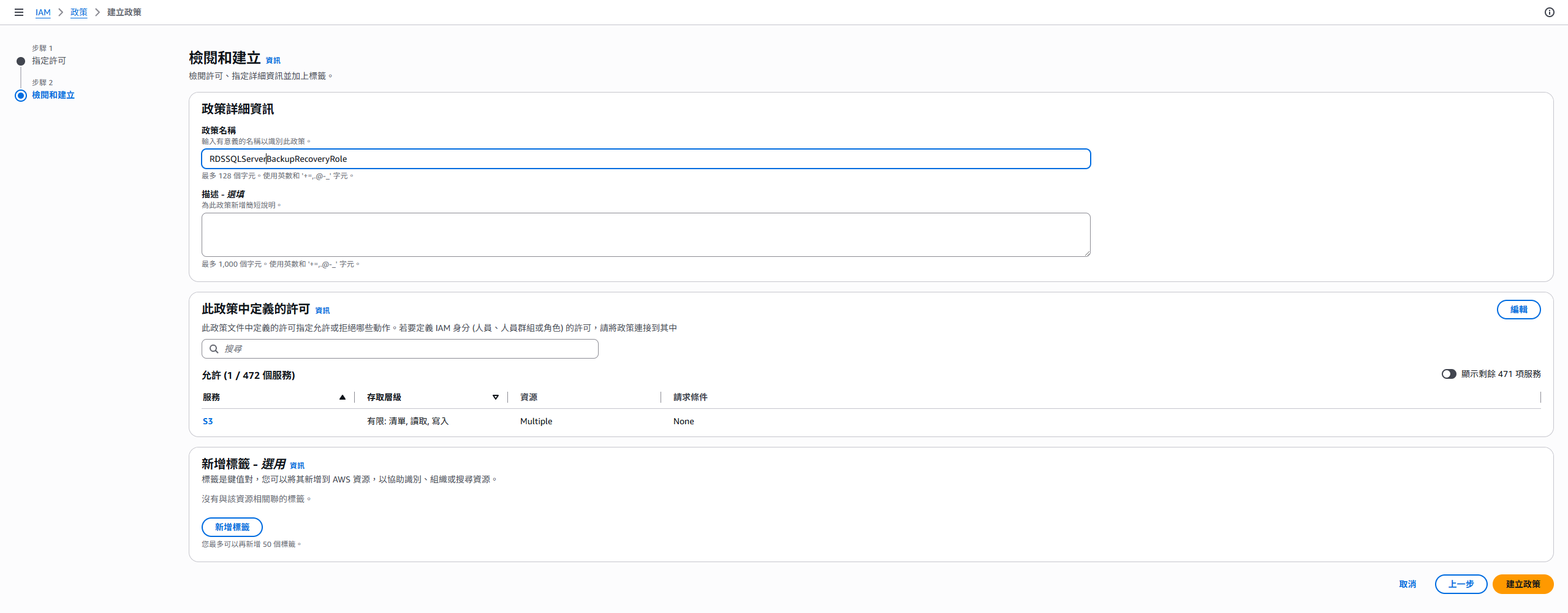
Use a dedicated bucket, or at least a dedicated prefix such as
sqlserver-native-backup/. If you leave the prefix empty, RDS might scan unrelated files in the bucket during multifile restore, which makes troubleshooting unnecessarily painful.
If the backup files need KMS encryption, add kms:DescribeKey, kms:GenerateDataKey, kms:Encrypt, and kms:Decrypt for the KMS key to the IAM role, and make sure the KMS key policy allows this IAM role to use the key.
Create an IAM Role
Next, create an IAM role that RDS can assume. This role provides the permissions required for native backup and restore to access S3, so its trust relationship must at least allow rds.amazonaws.com to use it.
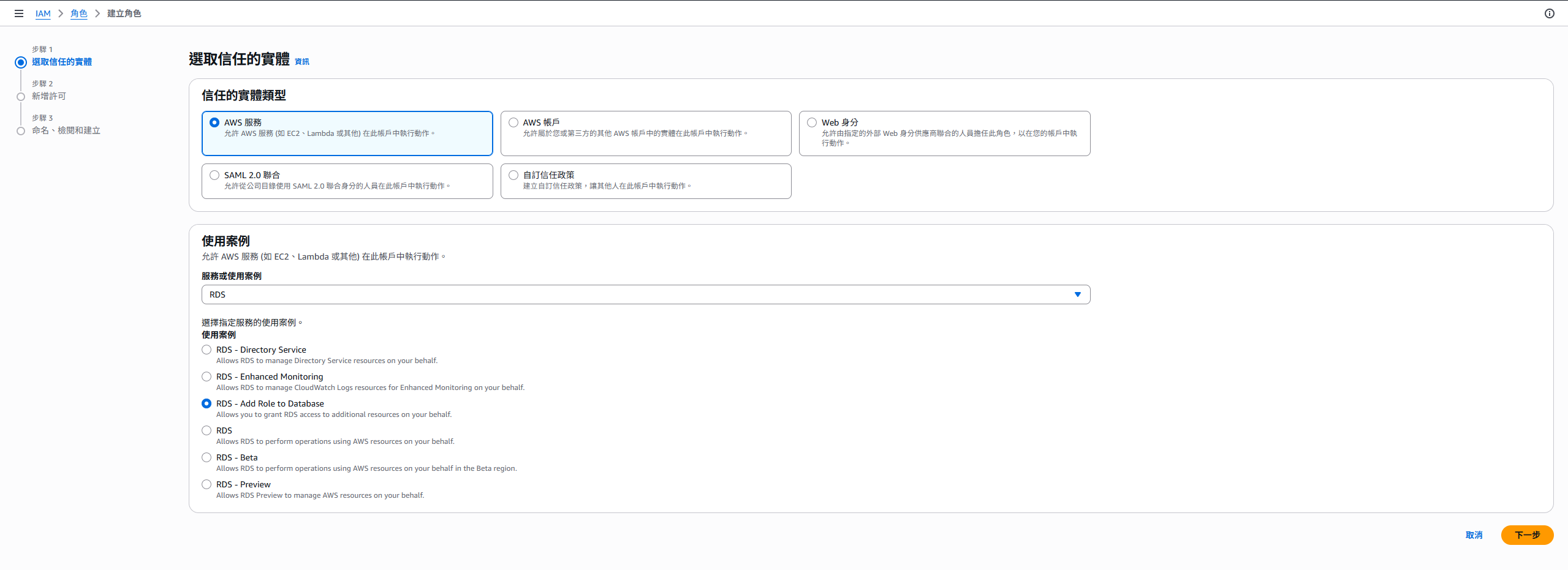
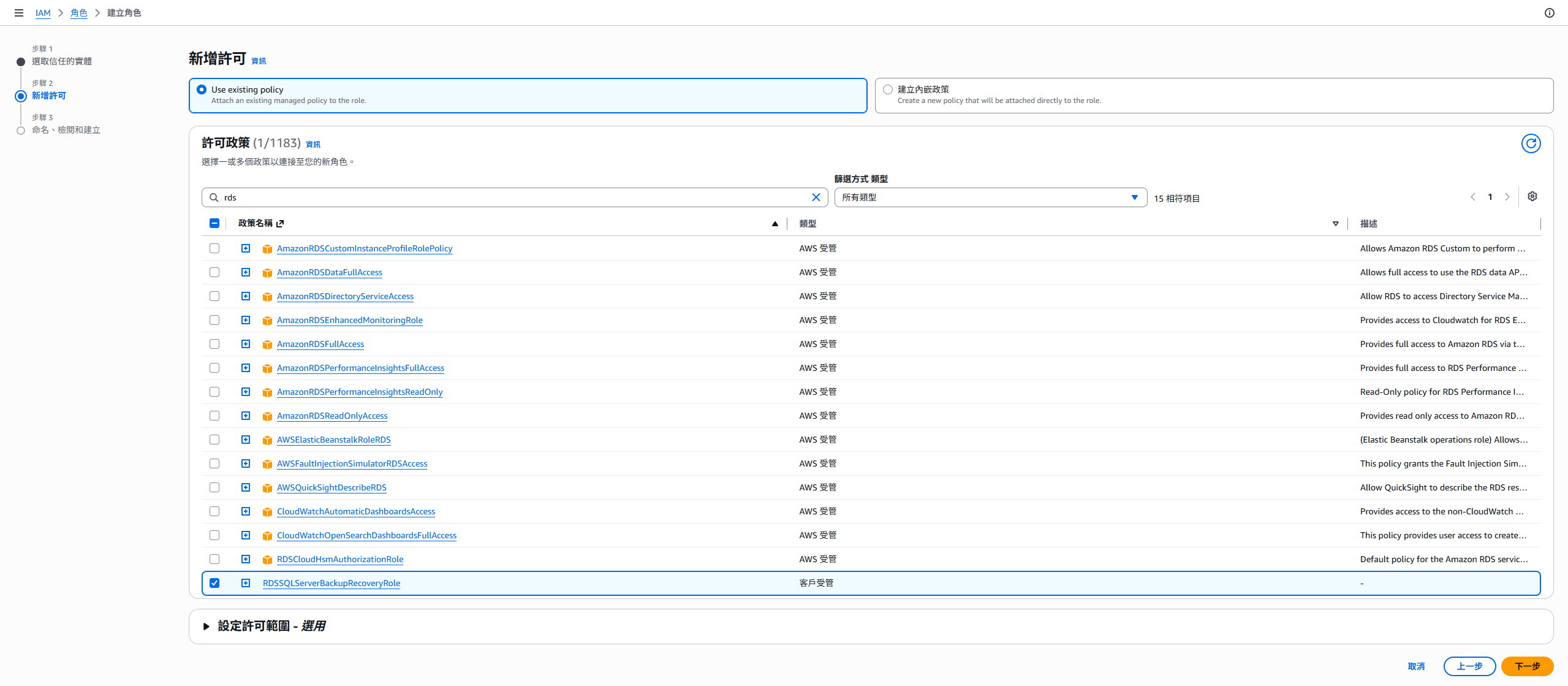
If you created the policy earlier, you can now search for it and attach it.
For the trust relationship, you can start with rds.amazonaws.com as the trusted entity.
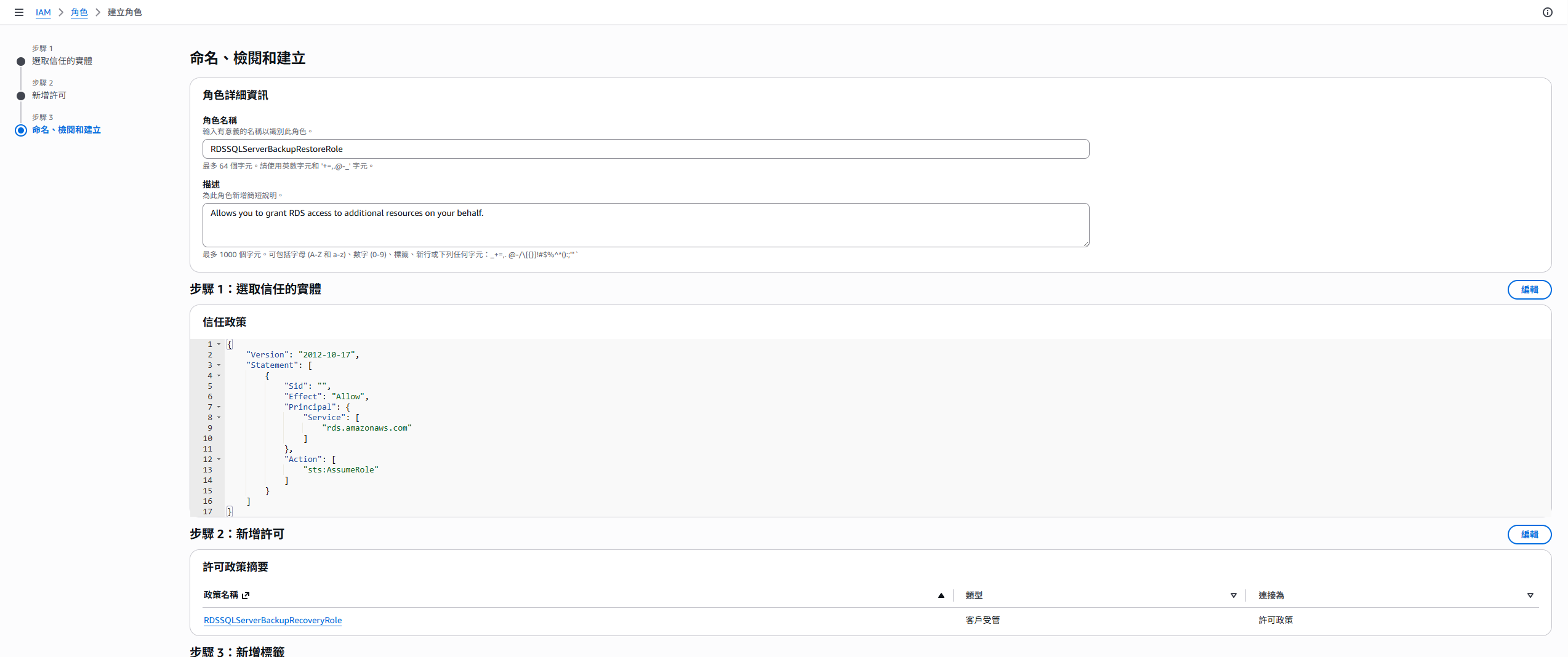
For production, you can make it stricter by adding aws:SourceAccount and aws:SourceArn, limiting the role to a specific account, DB instance, and option group:
1
2
3
4
5
6
7
8
9
10
11
12
13
14
15
16
17
18
19
20
21
22
23
{
  "Version": "2012-10-17",
  "Statement": [
    {
      "Effect": "Allow",
      "Principal": {
        "Service": "rds.amazonaws.com"
      },
      "Action": "sts:AssumeRole",
      "Condition": {
        "StringEquals": {
          "aws:SourceAccount": "<account-id>"
        },
        "ArnLike": {
          "aws:SourceArn": [
            "arn:aws:rds:<region>:<account-id>:db:<db-instance-id>",
            "arn:aws:rds:<region>:<account-id>:og:<option-group-name>"
          ]
        }
      }
    }
  ]
}
Connect the IAM Role to the Option Group
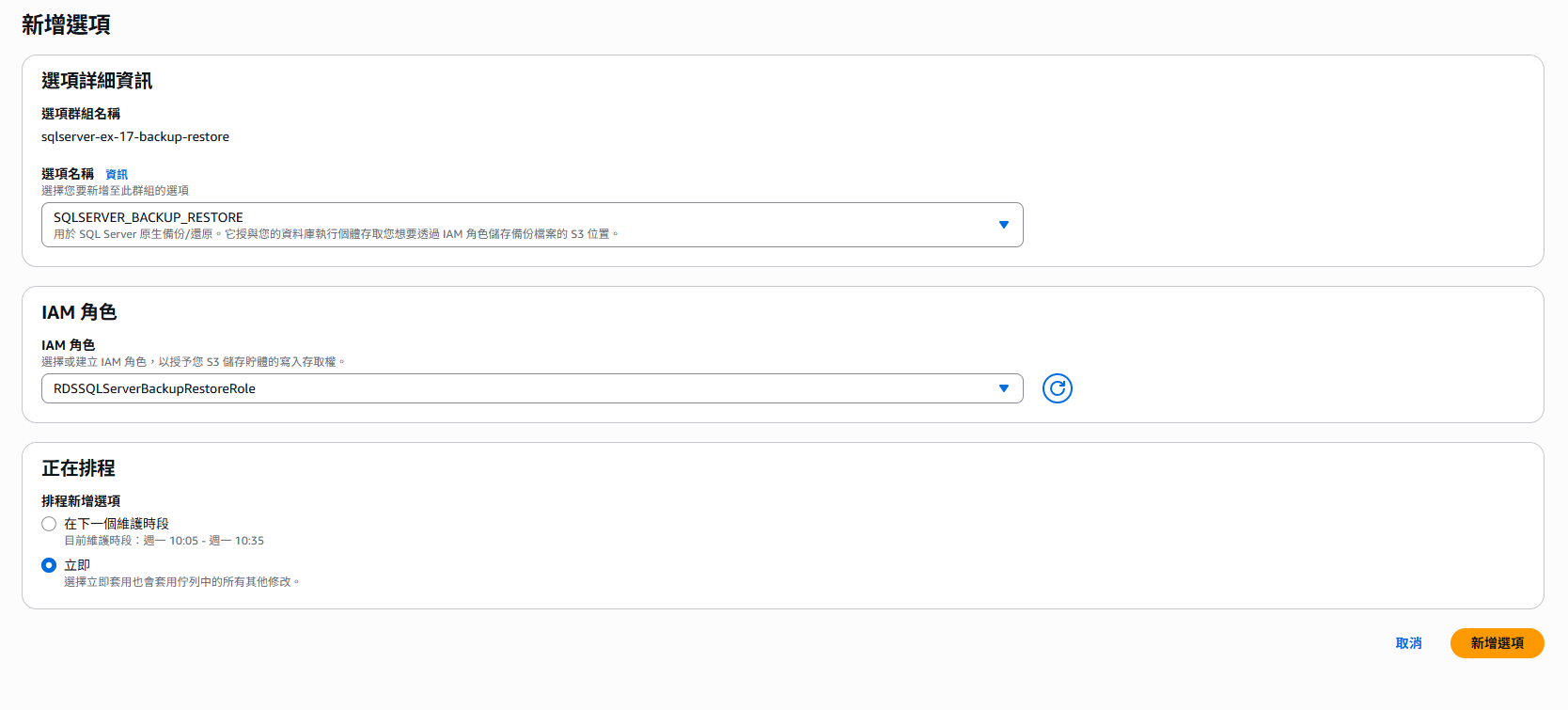
After the S3 bucket, IAM policy, and IAM role are ready, return to the SQL Server option group, add the SQLSERVER_BACKUP_RESTORE option, and set IAM_ROLE_ARN to the IAM role ARN you just created.
If the DB instance already exists, confirm that the DB instance is using this option group after modifying it. Some option group changes require a DB instance reboot. For production, perform this during a maintenance window.
Additional Note: Enable S3 Integration
If you also need RDS for SQL Server S3 integration in addition to native backup and restore, for example downloading files from S3 to the D:\S3\ folder on the DB instance host and then processing them with SQL Server features, configure the IAM role on the DB instance’s Connectivity & security tab.
Scroll down to the Manage IAM roles section to find the IAM role configuration.

If the IAM role trust relationship is correct, it appears in the dropdown list. For Feature, choose S3_INTEGRATION.

After a few minutes, the status changes to active. This means S3 integration is enabled.
If you only need to run
rds_backup_databaseorrds_restore_database, the key setting is still theSQLSERVER_BACKUP_RESTOREoption in the option group.S3_INTEGRATIONis a separate file transfer feature. Do not treat them as the same setting.
Create a .bak Backup File and Export It to S3
Use a machine that can connect to SQL Server, and connect to RDS with SQL Server Management Studio, Azure Data Studio, or another SQL client.
The following example creates a full backup of the my_app database as a .bak file and exports it to S3:
1
2
3
4
5
exec msdb.dbo.rds_backup_database
  @source_db_name='my_app',
  @s3_arn_to_backup_to='arn:aws:s3:::markmew-rds-sql-server-backup-restore/my_app_full.bak',
  @overwrite_s3_backup_file=1,
  @type='FULL';
Use rds_task_status to check the backup status:
1
exec msdb.dbo.rds_task_status @db_name='my_app';
If you want to list all native backup and restore tasks on the current DB instance, call it without parameters:
1
exec msdb.dbo.rds_task_status;
Unlike operating directly on backup files in an on-premises environment, RDS for SQL Server native backup and restore creates tasks. A task moves from CREATED to IN_PROGRESS, then to SUCCESS after completion. If it fails, it shows ERROR, and task_info provides the error details.
To restore a .bak file from S3, use rds_restore_database. Restore cannot overwrite an existing database with the same name, so it is common to restore to a new database name first:
1
2
3
exec msdb.dbo.rds_restore_database
  @restore_db_name='my_app_restore',
  @s3_arn_to_restore_from='arn:aws:s3:::markmew-rds-sql-server-backup-restore/my_app_full.bak';
RDS for SQL Server rds_* Stored Procedures and Tasks
When using RDS for SQL Server, many tasks that you might normally perform with a GUI, OS privileges, sysadmin privileges, or direct file system access in a self-managed SQL Server environment are handled through Amazon RDS-provided msdb.dbo.rds_* stored procedures and functions.
This does not mean native SQL Server syntax is replaced. It is because RDS is a managed service. AWS does not provide shell access to DB instances, and it restricts certain system procedures and system tables that require advanced privileges. AWS wraps common DBA work as RDS-specific procedures and functions so you can perform management actions without touching the underlying host.
AWS provides an official page listing these functions and stored procedures. Common categories include:
| Category | Common procedures / functions | Purpose |
|---|---|---|
| Management tasks | rds_drop_database, rds_modify_db_name, rds_read_error_log, rds_set_configuration | Drop or rename databases, read error logs, adjust RDS-specific settings |
| CDC | rds_cdc_enable_db, rds_cdc_disable_db | Enable or disable change data capture on RDS for SQL Server |
| Native backup/restore | rds_backup_database, rds_restore_database, rds_restore_log, rds_finish_restore, rds_cancel_task | Handle .bak backup, restore, and cancellation as tasks |
| Task status | rds_task_status | Check native backup and restore task status |
| S3 file transfer | rds_download_from_s3, rds_upload_to_s3, rds_gather_file_details, rds_delete_from_filesystem | Transfer or manage files between S3 and the D:\S3\ folder on the DB instance host with S3 integration |
| TDE | rds_backup_tde_certificate, rds_restore_tde_certificate, rds_drop_tde_certificate, rds_fn_list_user_tde_certificates | Manage Transparent Data Encryption certificates |
| SQL Server Agent / system database sync | rds_set_system_database_sync_objects, rds_fn_get_system_database_sync_objects, rds_fn_server_object_last_sync_time | Sync system database objects such as SQL Server Agent jobs in specific scenarios |
| MSBI | rds_msbi_task, rds_fn_task_status | Manage or query SSAS, SSIS, and SSRS tasks |
| Resource Governor | rds_create_resource_pool, rds_alter_resource_pool, rds_drop_resource_pool, rds_create_workload_group | Manage Resource Governor objects |
Two status queries are easy to confuse:
rds_task_status: used for native backup and restore tasks, such asrds_backup_databaseandrds_restore_database.rds_fn_task_status: used for MSBI-related tasks, such as SSAS, SSIS, and SSRS deployment or management tasks.
So if you cannot find a familiar host-level operation on RDS for SQL Server, do not immediately assume that RDS does not support it. First check the official functions and stored procedures list to see whether AWS provides a corresponding rds_* procedure or function.
Method 2: Create It with Terraform
If your production infrastructure is already managed by Terraform, I recommend managing RDS in Terraform as well to avoid configuration drift from console changes.
The following simplified example shows the relationship among the subnet group, parameter group, Security Group, S3 bucket, IAM role, option group, and RDS DB instance. In a real environment, connect VPC, subnets, KMS, passwords, tags, and naming rules to your existing modules.
1
2
3
4
5
6
7
8
9
10
11
12
13
14
15
16
17
18
19
20
21
22
23
24
25
26
27
28
29
30
31
32
33
34
35
36
37
38
39
40
41
42
43
44
45
46
47
48
49
50
51
52
53
54
55
56
57
58
59
60
61
62
63
64
65
66
67
68
69
70
71
72
73
74
75
76
77
78
79
80
81
82
83
84
85
86
87
88
89
90
91
92
93
94
95
96
97
98
99
100
101
102
103
104
105
106
107
108
109
110
111
112
113
114
115
116
117
118
119
120
121
122
123
124
125
126
127
128
129
130
131
132
133
134
135
136
137
138
139
140
141
142
143
144
145
146
147
148
149
150
151
152
153
154
155
156
157
158
159
160
161
162
163
164
165
166
167
168
169
170
171
172
173
174
175
176
177
178
179
180
181
182
183
184
185
186
187
188
189
190
191
192
193
194
195
196
197
198
199
200
201
202
203
204
data "aws_caller_identity" "current" {}

data "aws_region" "current" {}

variable "vpc_id" {
  type = string
}

variable "private_subnet_ids" {
  type = list(string)
}

variable "app_security_group_id" {
  type = string
}

variable "db_password" {
  type      = string
  sensitive = true
}

variable "backup_bucket_name" {
  type = string
}

variable "backup_prefix" {
  type    = string
  default = "sqlserver-native-backup"
}

resource "aws_db_subnet_group" "database" {
  name       = "rds-database-subenet-group"
  subnet_ids = var.private_subnet_ids

  tags = {
    Name = "rds-database-subenet-group"
  }
}

resource "aws_security_group" "sqlserver" {
  name        = "sqlserver"
  description = "Allow application access to RDS SQL Server"
  vpc_id      = var.vpc_id

  ingress {
    description     = "SQL Server from application"
    from_port       = 1433
    to_port         = 1433
    protocol        = "tcp"
    security_groups = [var.app_security_group_id]
  }

  egress {
    from_port   = 0
    to_port     = 0
    protocol    = "-1"
    cidr_blocks = ["0.0.0.0/0"]
  }
}

resource "aws_s3_bucket" "sqlserver_backup" {
  bucket = var.backup_bucket_name

  tags = {
    Name = var.backup_bucket_name
  }
}

resource "aws_s3_bucket_public_access_block" "sqlserver_backup" {
  bucket = aws_s3_bucket.sqlserver_backup.id

  block_public_acls       = true
  block_public_policy     = true
  ignore_public_acls      = true
  restrict_public_buckets = true
}

resource "aws_iam_role" "sqlserver_backup_restore" {
  name = "rds-sqlserver-backup-restore"

  assume_role_policy = jsonencode({
    Version = "2012-10-17"
    Statement = [
      {
        Effect = "Allow"
        Principal = {
          Service = "rds.amazonaws.com"
        }
        Action = "sts:AssumeRole"
        Condition = {
          StringEquals = {
            "aws:SourceAccount" = data.aws_caller_identity.current.account_id
          }
          ArnLike = {
            "aws:SourceArn" = [
              "arn:aws:rds:${data.aws_region.current.name}:${data.aws_caller_identity.current.account_id}:db:*",
              "arn:aws:rds:${data.aws_region.current.name}:${data.aws_caller_identity.current.account_id}:og:*"
            ]
          }
        }
      }
    ]
  })
}

resource "aws_iam_policy" "sqlserver_backup_restore" {
  name = "rds-sqlserver-backup-restore-s3"

  policy = jsonencode({
    Version = "2012-10-17"
    Statement = [
      {
        Effect = "Allow"
        Action = [
          "s3:ListBucket",
          "s3:GetBucketLocation"
        ]
        Resource = aws_s3_bucket.sqlserver_backup.arn
      },
      {
        Effect = "Allow"
        Action = [
          "s3:GetObjectAttributes",
          "s3:GetObject",
          "s3:PutObject",
          "s3:ListMultipartUploadParts",
          "s3:AbortMultipartUpload"
        ]
        Resource = "${aws_s3_bucket.sqlserver_backup.arn}/${var.backup_prefix}/*"
      }
    ]
  })
}

resource "aws_iam_role_policy_attachment" "sqlserver_backup_restore" {
  role       = aws_iam_role.sqlserver_backup_restore.name
  policy_arn = aws_iam_policy.sqlserver_backup_restore.arn
}

resource "aws_db_parameter_group" "mssql_ex_17_parameter_group" {
  name        = "sqlserver-ex-17-parameter-group"
  family      = "sqlserver-ex-17.0"
  description = "sqlserver express 2025 parametergroup"
}

resource "aws_db_option_group" "mssql_ex_17" {
  name                     = "sqlserver-demo-option-group"
  option_group_description = "Option group for SQL Server demo"
  engine_name              = "sqlserver-ex"
  major_engine_version     = "17.00"

  option {
    option_name = "SQLSERVER_BACKUP_RESTORE"

    option_settings {
      name  = "IAM_ROLE_ARN"
      value = aws_iam_role.sqlserver_backup_restore.arn
    }
  }

  tags = {
    Name = "sqlserver-demo-option-group"
  }

  depends_on = [
    aws_iam_role_policy_attachment.sqlserver_backup_restore
  ]
}

resource "aws_db_instance" "sqlserver" {
  identifier = "sqlserver-express-demo"

  engine         = "sqlserver-ex"
  engine_version = "17.00.4045.5.v1"
  license_model  = "license-included"

  instance_class        = "db.t3.small"
  allocated_storage     = 20
  max_allocated_storage = 100
  storage_type          = "gp3"

  username = "admin"
  password = var.db_password
  port     = 1433

  db_subnet_group_name   = aws_db_subnet_group.database.name
  vpc_security_group_ids = [aws_security_group.sqlserver.id]
  parameter_group_name   = aws_db_parameter_group.mssql_ex_17_parameter_group.name
  option_group_name      = aws_db_option_group.mssql_ex_17.name

  timezone                = "Taipei Standard Time"
  backup_retention_period = 7
  backup_window           = "18:00-19:00"
  maintenance_window      = "sun:19:00-sun:20:00"

  multi_az            = false
  publicly_accessible = false
  deletion_protection = false
  skip_final_snapshot = true

  tags = {
    Name = "sqlserver-express-demo"
  }
}
This Terraform is only a demonstration. For production, adjust at least the following:
- Do not hard-code the password in
.tffiles. Use Secrets Manager, SSM Parameter Store, or CI/CD secrets. - Enable
deletion_protectionfor production. - Avoid
skip_final_snapshot = truefor production. - If the database is critical, evaluate
multi_az. - Confirm
family,engine_version, andmajor_engine_versionagainst the actual supported versions. - Supported CloudWatch log exports vary by engine and version. Confirm them for your version.
- The S3 bucket must be in the same Region as the RDS DB instance.
- S3 bucket names are globally unique, so replace
backup_bucket_namewith your own name. - If you want to encrypt
.bakfiles with KMS, both the IAM policy and KMS key policy must allow this role to use the key. - The trust policy example limits permissions to RDS DB and option group ARN patterns in the same account and Region. For production, you can restrict it further to explicit DB instance and option group ARNs.
backup_prefixmust match the S3 object path used during actual backup and restore operations.
Backup and Restore Strategy
RDS for SQL Server commonly uses three backup approaches:
| Approach | Purpose |
|---|---|
| Automated Backup | RDS automated backups, supporting PITR within the retention period |
| Manual Snapshot | A manual DB snapshot at a specific point in time |
| Native backup and restore | Import or export SQL Server databases through .bak files and S3 |
Automated Backup is the most basic backup feature and should usually be enabled. It supports Point-in-Time Recovery within the configured backup retention period. If data is accidentally deleted, a deployment writes bad data, or a batch job corrupts records, you can restore to a specified point in time.
RDS PITR does not overwrite the original DB. It creates a new DB instance. This is usually safer because you can validate the data first, then decide whether to switch the application connection, copy data back to the original database, or keep it only for incident analysis.
Manual Snapshot is useful before major changes, such as upgrades, parameter adjustments, or large batch updates. It does not replace Automated Backup, but it gives you an explicit recovery point before a change.
Native backup and restore is better suited for integrating with existing SQL Server workflows. For example, you can back up an on-premises SQL Server database to a .bak file in S3 and restore it to RDS, or back up an RDS database to S3 for another environment. This requires SQLSERVER_BACKUP_RESTORE in the option group and an IAM role with S3 permissions.
A production backup strategy should answer at least three questions:
| Question | Meaning |
|---|---|
| What is the RPO? | The maximum amount of data loss you can accept |
| What is the RTO? | The maximum time you can accept before service is restored |
| How often do you run restore drills? | Confirm that backups are really usable, not just successful in status |
Having backups does not mean you can restore. I recommend regularly running restore drills in a non-production environment and recording restore time, cutover steps, permission differences, parameter groups, option groups, Security Groups, and application connection settings.
Advantages of Using RDS for SQL Server
Monitoring Is Easier to Put in Place
For a self-managed SQL Server on EC2 or on premises, you usually need to install agents, collect logs, and integrate a monitoring platform before the database becomes truly observable.
RDS provides many CloudWatch metrics by default, such as CPU, connections, storage, IOPS, and latency. If you need more detail, you can enable Enhanced Monitoring, Performance Insights, or CloudWatch Database Insights.
At minimum, I recommend setting alarms for:
| Metric | What to watch |
|---|---|
CPUUtilization | Whether CPU stays above the normal baseline for a long time |
FreeableMemory | Whether memory is insufficient |
FreeStorageSpace | Whether storage is close to full |
DatabaseConnections | Whether connections increase abnormally |
ReadLatency / WriteLatency | Whether storage latency is getting worse |
ReadIOPS / WriteIOPS | Whether I/O is approaching a bottleneck |
Storage Expansion Is Simpler
On-premises or self-managed EC2 databases sometimes run into insufficient disk space. This is especially common when an application or batch job accidentally writes large logs, temporary data, or history data into the database.
RDS can use storage autoscaling to automatically increase storage when free space approaches a threshold. You still need capacity planning and cost control, but it reduces the pressure of manually expanding disks, file systems, and mount points in the middle of the night.
Backups and Maintenance Are More Manageable
RDS provides Automated Backup, Manual Snapshot, PITR, and a maintenance window. These features do not mean DBAs or engineers can ignore the database. They turn many lower-level operational tasks into configurable, traceable, and testable processes.
If your organization already uses AWS Backup, you can include RDS in a centralized backup plan to manage retention periods, cross-account or cross-Region copies, and audit requirements.
High Availability Is Easier to Standardize
If the database is a critical production component, evaluate Multi-AZ. RDS Multi-AZ improves availability and durability across Availability Zones and reduces impact during some maintenance or failure scenarios.
Multi-AZ is not a read-scaling feature. If you need to distribute read traffic, evaluate Read Replica or application-level read/write routing separately.
For high availability, confirm both the SQL Server edition and engine version. RDS for SQL Server Multi-AZ mainly supports Standard and Enterprise. SQL Server 2022 Web Edition requires 16.00.4215.2 or later for block level replication. Express Edition does not support Multi-AZ.
Limitations of RDS for SQL Server
No Full sa or OS-Level Access
In RDS for SQL Server, the master user specified during creation is not the same as the sa account commonly used in self-managed SQL Server, and it does not have full sysadmin privileges. It is the highest-privilege user that AWS allows you to use.
This means some operations that require OS access, instance-level access, or sysadmin privileges cannot be performed. Before adopting RDS, confirm whether existing systems, operational scripts, backup workflows, or DBA habits depend on these permissions.
Some SQL Server Features Are Not Supported
RDS for SQL Server is a managed service, so it cannot expose every feature available in a self-managed SQL Server. Common limitations include no server-level triggers, no features that require certain OS access, and no arbitrary changes to the underlying file system.
If an existing system depends heavily on SQL Server Agent jobs, linked servers, CLR, SSIS, SSRS, special backup workflows, or other advanced features, compare each requirement with the RDS support status before adoption.
Version, Edition, and Resource Class Affect Features
SQL Server features depend on edition, version, and the RDS support scope. Express Edition is suitable for demos or small tests, but production systems are usually constrained by capacity, resources, and features. Web, Standard, and Enterprise editions also differ in cost and available features.
Do not move a test configuration directly into production just because it runs. For production, confirm:
- Whether the database size exceeds edition limits.
- Whether the application features are supported.
- Whether the RDS instance class supports the engine and edition.
- Whether licensing cost fits the budget.
Checklist After Creation
After RDS is created, do not stop after one successful connection test. At minimum, confirm:
- RDS is not publicly accessible and is placed in the correct private subnets.
- The Security Group allows only necessary sources to connect to
1433. - The application or administration tools can connect successfully.
- Automated Backup is enabled and the retention period meets requirements.
- The maintenance window and backup window avoid peak traffic.
- The parameter group and option group use the correct versions.
- CloudWatch alarms are configured, at least for storage space and connections.
- Whether Enhanced Monitoring or Performance Insights should be enabled.
- Whether deletion protection matches the environment requirements.
- A restore test has been completed, proving the backup is more than a checkbox.
Conclusion
Creating RDS for SQL Server is not just replacing an EC2 database with a managed service. The real point is to break database operations into clearly managed areas: network, security, versioning, parameters, storage, backups, monitoring, maintenance, and restore.
For development or testing, a small SQL Server Express RDS instance can be created quickly. For production, however, success is not just whether the instance was created. You need to confirm that it can be operated, monitored, backed up, and restored over the long term.
RDS does not remove all database responsibilities, but it does reduce a lot of low-level platform work. When database platform operations are not where your company wants to differentiate, handing that work to a managed service is usually more practical than building and operating the platform yourself.
References
- Amazon RDS for Microsoft SQL Server
- Microsoft SQL Server versions on Amazon RDS
- Version policy for Amazon RDS for Microsoft SQL Server
- Support for native backup and restore in SQL Server
- Setting up for native backup and restore
- Importing and exporting SQL Server databases using native backup and restore
- Using native backup and restore
- Troubleshooting native backup and restore
- Integrating an Amazon RDS for SQL Server DB instance with Amazon S3
- Enabling RDS for SQL Server integration with S3
- Functions and stored procedures for Amazon RDS for Microsoft SQL Server
- Common DBA tasks for Amazon RDS for Microsoft SQL Server
- Unsupported and limited-support features
- Terraform Registry: aws_db_option_group