Root, Intermediate, and Server Certificates: Create and Check a Self-Signed Certificate
Understand certificate chains, create a self-signed certificate with OpenSSL, check validity dates, and troubleshoot missing intermediate certificates.
When a browser connects to an HTTPS website, the server presents a certificate so the browser can verify the site’s identity. This usually involves a root certificate, an intermediate certificate, and a server certificate. This article explains how they relate, then shows how to create a self-signed certificate, inspect it, and troubleshoot certificate chain problems with OpenSSL.
Root, intermediate, and server certificates
A typical certificate chain looks like this:
1
2
3
Root certificate (root CA)
  └─ Intermediate certificate (intermediate CA)
       └─ Server certificate (leaf certificate)
The root certificate is the trust anchor. It is usually included in an operating system’s or browser’s trust store. Root certificates are generally self-signed, but being self-signed does not make a certificate trusted: the client must already trust that root.
An intermediate certificate is issued by a root CA or another intermediate CA. It can then be used to issue server certificates, linking them to a trusted root.
The server certificate, also called an end-entity or leaf certificate, is the certificate the server uses. It contains the names it covers, a public key, and a validity period. The server keeps the corresponding private key; it must not send that key to clients.
During verification, the client builds a chain from the server certificate toward a trusted root and checks conditions such as signatures, validity periods, intended use, and the hostname. See the OpenSSL certificate verification documentation.
Create a self-signed certificate with OpenSSL
The following command creates a self-signed server certificate for local testing, valid for 365 days. Make sure OpenSSL is installed first.
1
2
3
4
5
6
7
openssl req -x509 -newkey rsa:2048 -sha256 -noenc \
  -keyout localhost.key \
  -out localhost.crt \
  -days 365 \
  -subj "/CN=localhost" \
  -addext "subjectAltName=DNS:localhost" \
  -addext "basicConstraints=critical,CA:FALSE"
This produces localhost.key (the private key) and localhost.crt (the certificate). -x509 generates a self-signed certificate directly, -days 365 sets its validity period, and subjectAltName specifies the DNS name it covers. For another hostname, change subjectAltName and the example’s CN. The -noenc option leaves the private key unencrypted for local testing. Protect that key and do not commit it to a public repository. See the OpenSSL req documentation for the options.
This certificate does not chain to a root the browser already trusts, so browsers will usually show a trust warning. A certificate can be within its validity period and still be untrusted.
Inspect a certificate and its validity dates
Display the subject, issuer, and validity dates:
1
openssl x509 -in localhost.crt -noout -subject -issuer -dates
notBefore is the start of the validity period; notAfter is the expiration time. To inspect the covered names, intended use, and other fields:
1
openssl x509 -in localhost.crt -noout -text
Check whether the certificate will expire within the next 30 days:
1
openssl x509 -in localhost.crt -noout -checkend 2592000
2592000 is 30 days in seconds. Exit status 0 means the certificate will still be valid after that interval; a nonzero status means it will have expired. This checks the expiration of one certificate, not the entire chain. See the OpenSSL x509 documentation.
Verify a certificate chain and inspect a live server
If you have a server certificate (server.crt), an intermediate certificate (intermediate.crt), and a trusted root certificate (root.crt), verify the chain and hostname with:
1
2
3
4
openssl verify -CAfile root.crt \
  -untrusted intermediate.crt \
  -verify_hostname example.com \
  server.crt
On success, OpenSSL prints server.crt: OK. -CAfile supplies the trusted root; -untrusted supplies an intermediate that can help build the chain. Supplying it through -untrusted does not make it a trust anchor. See the OpenSSL verification options.
To see which certificates a live server actually sends:
1
2
3
4
5
openssl s_client -connect example.com:443 \
  -servername example.com \
  -showcerts \
  -verify_hostname example.com \
  -verify_return_error
-showcerts displays the certificates sent by the server; that list alone is not proof that the chain is valid. -servername supplies the hostname for Server Name Indication (SNI), which matters when multiple HTTPS sites share an IP address. See the OpenSSL s_client documentation.
Common questions
Is a self-signed certificate the same as a root certificate?
No. Root certificates are usually self-signed, but a certificate you sign yourself does not automatically become a trusted root on client devices.
Must a website send its root certificate?
Usually not. Clients normally obtain trusted roots from their own trust stores. A server should send its server certificate and the intermediate certificates needed to build the chain.
What happens if the intermediate certificate is missing?
If an API server sends only its server certificate and omits a required intermediate, the client might not be able to build a chain to a root it trusts. Certificate verification can then fail during the TLS handshake, before any HTTP request is sent. The application might report errors such as unable to get local issuer certificate or certificate verify failed. What looks like an API failure may therefore be a problem with the HTTPS certificate chain, rather than the API’s application logic.
Some clients have the intermediate cached or can obtain it elsewhere. As a result, the same API may work in a browser but fail from an application, container, or other runtime. Configure the API server to send the required intermediate certificates and use openssl s_client -showcerts to inspect what it sends. Disabling certificate verification on the client is not a proper fix.
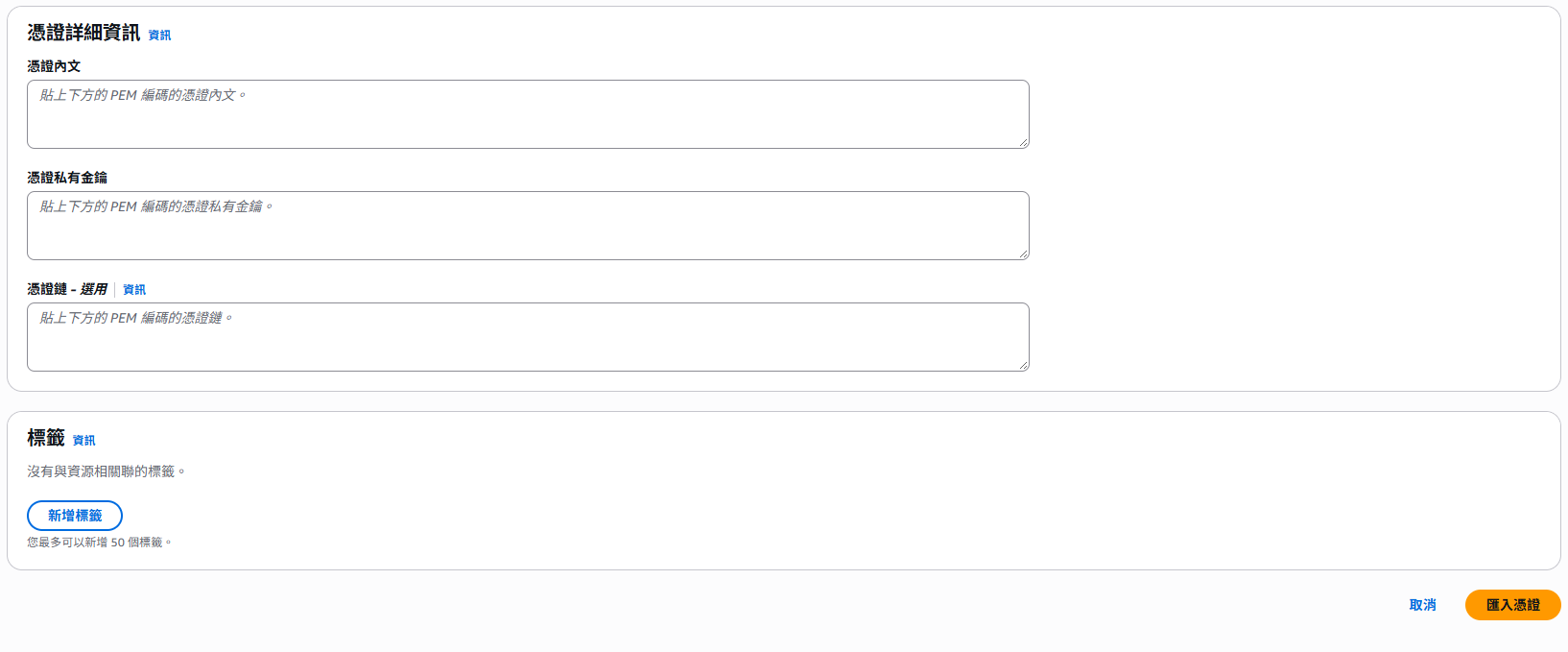
This often comes up during certificate replacement when the intermediate certificate is not included with the newly imported server certificate.
Why does the browser warn even though the certificate has not expired?
Expiration is only one check. A hostname mismatch, an incomplete chain, an untrusted root, or a certificate that is not yet valid can also cause verification to fail.