Restrict Geographic Access in CloudFront and Automatically Use index.html for Paths
An extension of hosting a static website with Amazon S3 and CloudFront, covering Geographic restrictions and using a CloudFront Function to rewrite extensionless paths to the corresponding index.html.

The previous article covered how to host a static website with Amazon S3 and CloudFront. After setting up the basic architecture, there are two common requirements:
- Allow access only from specific countries or regions.
- Automatically load
/docs/index.htmlwhen a user opens/docsor/docs/.
The first requirement can be handled with CloudFront Geographic restrictions. For the second, create a CloudFront Function and use it to rewrite the URI before the request is sent to the origin.
These features solve different problems: Geographic restrictions determine where a request comes from, while the Function adjusts the request path.
Restrict Geographic Access with Geographic restrictions
CloudFront Geographic restrictions can limit access to the content of an entire distribution at the country level. There are two modes:
| Mode | Description |
|---|---|
| Allowlist | Only countries in the list can access the content. |
| Blocklist | Countries in the list are denied; other countries can access the content. |
This setting applies to every file served by the distribution. If you need to restrict only a specific path, or need more detailed rules than country-level filtering, Geographic restrictions alone are not enough.
Configure Geographic restrictions in the Console
Open the CloudFront Console, select the distribution you want to edit, then open Geographic restrictions under the Security tab and choose Edit.
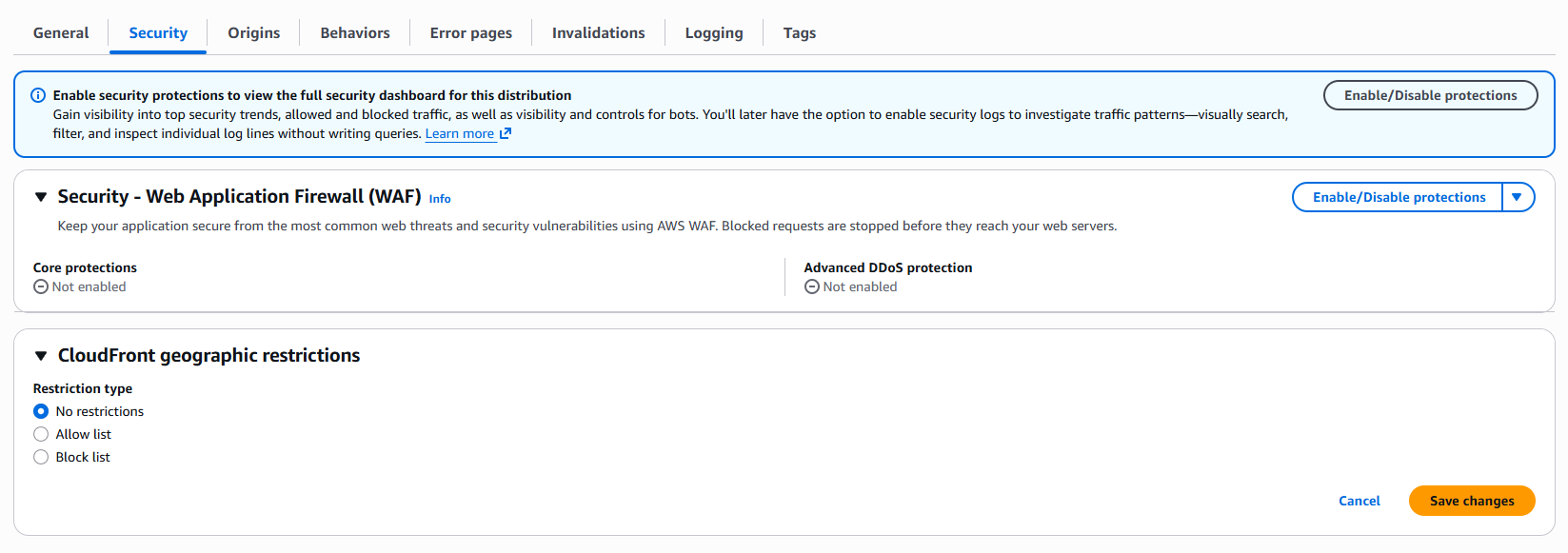
Choose Allow list or Block list, then add the countries to allow or block. Countries are represented by ISO 3166-1 alpha-2 codes, for example:
TW: TaiwanJP: JapanUS: United StatesSG: Singapore
After saving, wait for the distribution deployment to finish. CloudFront will then process requests according to the viewer’s geographic location. Restricted requests usually receive 403 Forbidden.
Geographic restrictions are a country-level content distribution control, not user authentication or a complete security boundary. CloudFront uses IP geolocation data to determine the viewer’s country. If the location cannot be determined, CloudFront may still serve the content. For sensitive data, use authentication, signed URLs, AWS WAF, or another access-control mechanism as well.
Configure Geographic restrictions with Terraform
If the Terraform from the previous article already creates the CloudFront distribution, modify the distribution’s restrictions block:
1
2
3
4
5
6
restrictions {
  geo_restriction {
    restriction_type = "whitelist"
    locations        = ["TW", "JP"]
  }
}
This allows requests from Taiwan and Japan only. To use a blocklist, change restriction_type to blacklist:
1
2
3
4
5
6
restrictions {
  geo_restriction {
    restriction_type = "blacklist"
    locations        = ["CN", "RU"]
  }
}
To disable geographic restrictions, use:
1
2
3
4
5
restrictions {
  geo_restriction {
    restriction_type = "none"
  }
}
Why Rewrite to index.html
The previous article configured the CloudFront distribution’s Default root object as index.html. When a user opens the website root /, CloudFront can therefore return the root index.html.
However, this setting handles only the distribution root. It does not automatically handle other directories. For example:
| User request | Expected file |
|---|---|
/ | /index.html |
/docs/ | /docs/index.html |
/docs | /docs/index.html |
/about.html | /about.html |
/assets/app.js | /assets/app.js |
If docs/index.html exists in the S3 bucket and a user requests /docs/, CloudFront does not automatically look for an index file in the subdirectory like the S3 Website endpoint does. In this case, create a regular Function, associate it with the distribution’s Viewer request, and use it to rewrite the URI.
Create a Function
In the CloudFront Console, open Functions from the left navigation and choose Create function.
Warning
Older tutorials may say to create a CloudFront Function and choose
Viewer request. In the new flow, creating a function shows onlyFunctionandConnection Function; this article uses onlyFunction.Connection Functionis for TLS handshakes and Viewer mTLS, so it is not used here.
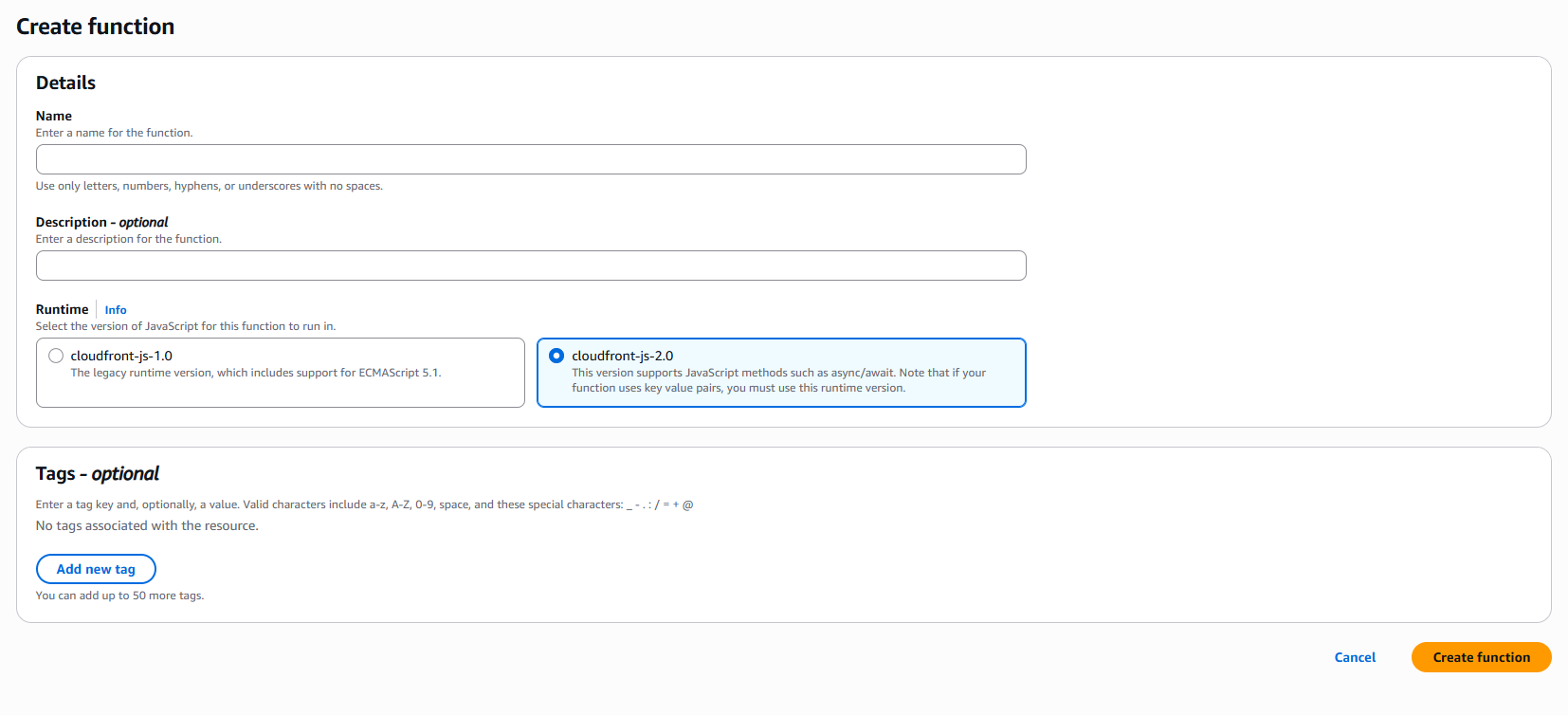
Enter a function name, use cloudfront-js-2.0 as the runtime, and paste the following code into the editor:
1
2
3
4
5
6
7
8
9
10
11
function handler(event) {
    var request = event.request;
    if (request.uri !== "/" && (request.uri.endsWith("/") || request.uri.lastIndexOf(".") < request.uri.lastIndexOf("/"))) {
        if (request.uri.endsWith("/")) {
            request.uri = request.uri.concat("index.html");
        } else {
            request.uri = request.uri.concat("/index.html");
        }
    }
    return request;
}
The Function handles the paths as follows:
/: Leave the URI unchanged and let the Default root object load/index.html./docs/: Rewrite it to/docs/index.html./docs: Rewrite it to/docs/index.html./about.html: Keep the original path because the last segment has a file extension./assets/app.js: Keep the original path; it is not treated as a directory.
After associating the Function with Viewer request, CloudFront runs it after receiving the viewer request and before checking the cache. The Function changes the URI sent by CloudFront to the origin, so the browser’s address bar remains /docs or /docs/; no HTTP redirect occurs.
This approach works well for static websites where a directory path maps to an
index.htmlinside that directory. If the site has a real extensionless file such as/download, it will be treated as a directory and rewritten to/download/index.html. Adjust the condition according to the site’s naming conventions.
Test the CloudFront Function
In the Function test screen, create an HTTP request test event and enter different URIs to verify the rewrites.
| Test URI | Expected result |
|---|---|
/ | /, handled by the Default root object |
/docs/ | /docs/index.html |
/docs | /docs/index.html |
/about.html | /about.html |
/assets/app.js | /assets/app.js |
After the results are correct, choose Publish, then associate the Function with the CloudFront distribution. Saving only the Development version does not affect production traffic.
Associate the Function with the CloudFront distribution
Open Behaviors in the CloudFront distribution and edit the Default behavior that handles the website content.
Add the following under Function associations:
- Event type:
Viewer request - Function type:
Function - Function: Select the Function you just published.
The Function here is the regular CloudFront Function. Connection Function is not appropriate for this URI rewrite.
Save the changes and wait for the distribution deployment to finish. CloudFront will then run the URI rewrite at the edge locations.
If the website has multiple cache behaviors, make sure the Function is associated with the correct behavior. Updating only the Default behavior does not automatically apply the Function to more specific path patterns.
Manage the CloudFront Function with Terraform
Use aws_cloudfront_function to create the regular Function, then use function_association to associate it with the CloudFront distribution:
1
2
3
4
5
6
7
8
resource "aws_cloudfront_function" "directory_index" {
  name    = "directory-index"
  runtime = "cloudfront-js-2.0"
  comment = "Rewrite directory paths to index.html"
  publish = true

  code = file("${path.module}/functions/directory-index.js")
}
Add the following block inside default_cache_behavior in the existing aws_cloudfront_distribution resource:
1
2
3
4
5
# Place this inside default_cache_behavior of aws_cloudfront_distribution
function_association {
  event_type   = "viewer-request"
  function_arn = aws_cloudfront_function.directory_index.arn
}
The content of functions/directory-index.js is the same JavaScript used in the CloudFront Console. Terraform’s publish = true publishes a version that the distribution can use. If the Function is already associated with a distribution, remove the association before deleting the Function.
Terraform also has a separate aws_cloudfront_connection_function resource for Connection Functions and Viewer mTLS. It does not replace the aws_cloudfront_function used here.
Test and Invalidate the Cache
After configuring Geographic restrictions and the Function, test the setup in this order:
- Open the CloudFront domain from an allowed country and confirm that
/loads the homepage. - Open
/docs/and confirm that it returns the content of/docs/index.html. - Open
/docsand confirm that the same page loads without a trailing slash. - Open
/about.htmland/assets/app.jsand confirm that their paths are not rewritten incorrectly. - From a blocked country or test environment, confirm that the request receives
403.
If old results remain after publishing a new version or deploying the association, create an invalidation:
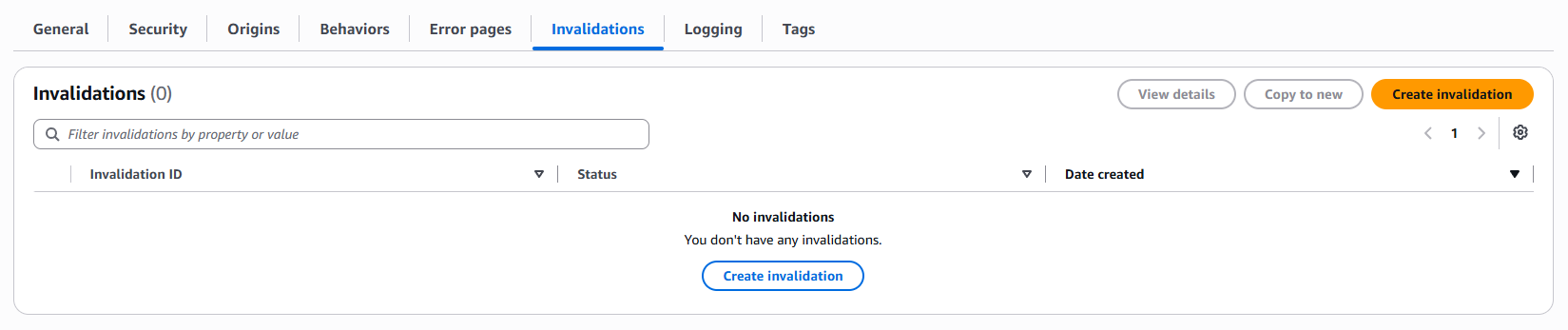
If you prefer the CLI, run:
1
2
3
aws cloudfront create-invalidation \
  --distribution-id YOUR_DISTRIBUTION_ID \
  --paths "/*"
Limitations of a Regular CloudFront Function
A regular Function is suitable for lightweight, low-latency URI or header processing, but it is not a full backend runtime. Common limitations include:
- It can be associated only with
Viewer requestorViewer responseevents. - It cannot access the request body.
- It cannot directly access the network, file system, or environment variables.
- It is not suitable for complex or long-running work.
- Only one CloudFront Function can be associated with the same event in each cache behavior.
Connection Function uses the Connection request event, which is different from the Viewer request and Viewer response events used by a regular Function.
If you need to access the request body, call an external service, or process logic during an origin request or origin response, consider Lambda@Edge or another backend service instead of forcing the logic into CloudFront Functions.
Conclusion
CloudFront Geographic restrictions and a regular CloudFront Function handle two different requirements:
- Geographic restrictions: Limit which countries or regions can access the distribution.
- Function: Rewrite
/docsor/docs/to/docs/index.htmlbefore the request is sent to S3.
The first is a country-level content distribution control, while the second is a lightweight URI rewrite at the edge. Using them together gives an S3 + CloudFront static website more natural directory URLs while keeping the S3 bucket private.
Connection Function is a separate function type for TLS handshakes and Viewer mTLS certificate validation. It is not used in this article.
References
- Restrict the geographic distribution of your content
- Create a CloudFront function
- CloudFront connection functions
- Add index.html to request URLs without a file name in a CloudFront Functions viewer request event
- Restrictions on CloudFront Functions
- AWS Provider: aws_cloudfront_function
- AWS Provider: aws_cloudfront_connection_function
- AWS Provider: aws_cloudfront_distribution